This post contains affiliate links. If you purchase through them, we may earn a small commission at no extra cost to you. This product was provided through the Amazon Vine program for our honest review. All opinions are our own, and our original thoughts are enhanced with AI for clarity. Thanks for supporting Gaming Gear Drop.
Pros
- Multi-compatible
- Programmable
- Hall triggers
- Motion controls
- RGB lighting
- Touchpad
- Audio support
Cons
- Bad batches
- Connection issues
- Setup
Quick Summary
The NBCP Wolf X-2 Wireless PS4 Controller offers a wide range of features, including multi-platform support, programmable back buttons, motion controls, and adjustable lighting. It aims to provide more customization than a standard controller, though some users have reported bad batch issues. Setup and customization rely on manual button combinations, which may take time to learn.
For more information, stick around and read below for my take on this product.
Hey there, welcome to our review of the NBCP Wolf X-2 Wireless PS4 Controller.
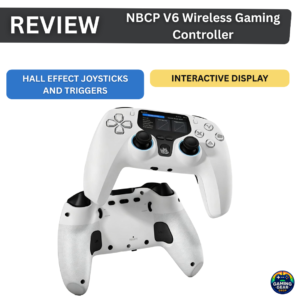
For this review, we tested this controller to offer honest insights and hopefully make your decision-making a tad easier. We have gathered all the important details about this gaming accessory to share with you, specifically focusing on the white version of the controller.
Throughout this post, we will discuss its key features, highlight user feedback, share our personal impressions, and explain who might benefit most from it.
So, if you are looking for a reliable white wireless controller for your PlayStation 4 or PC, stick around to find out if this suits your needs.
Key Features
Controller Layout
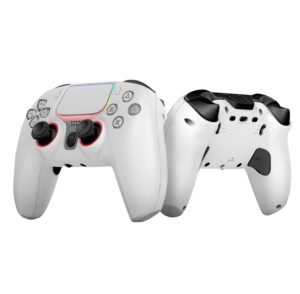
The controller includes an integrated touchpad, built-in speaker, and a 3.5mm headphone jack, along with a physical headphone switch to turn audio output on or off directly from the controller. It also features a built-in gyroscope for motion-based controls and supports gyroscope calibration when adjustments are needed. Power is handled by a 1000mAh rechargeable battery, rated for around 8 hours of use, with charging through the USB-C port. To help conserve battery, the controller enters sleep mode after inactivity and can be woken by pressing the PS button.
Adjustable Trigger Travel
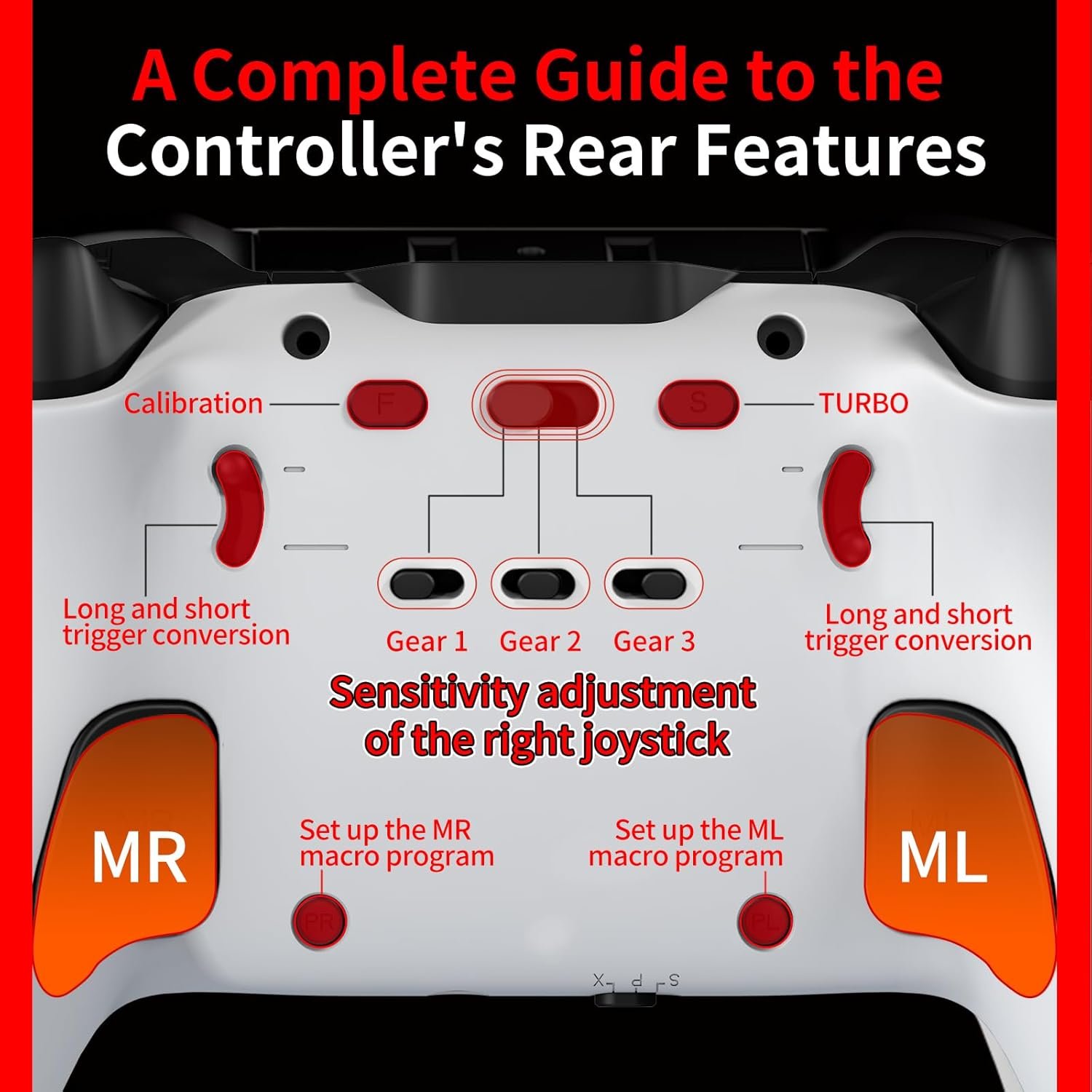
The controller includes a trigger travel lock that lets you switch between short and long trigger pulls. Short travel is useful for quick tapping and fast reactions, while long travel allows full presses for smoother control in games that benefit from gradual input, such as racing or action titles.
Multi-Platform Support
The controller supports use on PS4, PS4 Slim, PS4 Pro, Windows PC, iOS, and Android platforms. It is compatible with Windows 7, 8, 10, and 11, and also supports PC Steam mode for use with supported games.
Wireless and Wired Modes
The controller supports Bluetooth wireless and wired USB-C connections. A 2.4G wireless mode is also supported, though the receiver is not included and must be purchased separately. This allows users to choose between wireless play or a direct wired connection depending on their setup.
Anti Stick Drift Technology
The controller uses Hall technology in both the triggers and joysticks, which relies on magnetic sensors instead of physical contact. This design helps reduce wear over time and is commonly associated with improved resistance to stick drift. The joysticks are rated for over 3 million cycles, and the triggers are designed to provide smooth and consistent input during gameplay.
Dual Vibration Feedback
The controller includes dual vibration motors that provide feedback during supported games. Vibration behavior depends on the game and platform being used, but is intended to add physical response during gameplay events.
Custom Button Shortcuts (Macros)
The controller includes rear buttons that support macros, which let multiple button actions be combined into a single press. This can help simplify certain in-game actions or reduce repeated button presses. Once set, the controller remembers these macro settings even after it is turned off.
Aim Sensitivity Control
The controller includes a small switch that lets you change how fast the right joystick responds. This can make aiming feel slower or faster depending on your preference, which can be helpful in shooting games where control matters.
RGB Lighting Customization
The controller includes light rings around the joysticks and platform lighting. The lighting colors and effects can be adjusted, synchronized, or turned off completely using button combinations on the controller.
Deep On-Controller Customization
Beyond basic features, the controller offers a wide range of built-in customization options handled directly on the controller. Players can adjust Turbo behavior and speed, swap joystick and D-pad functions, fine-tune right stick sensitivity, change trigger response, manage sleep and wake behavior, control headphone output, reset all settings, and customize lighting effects.
Advanced calibration tools are also included for joysticks, triggers, and the gyroscope, helping correct accuracy issues over time. Rear back buttons support macro recording, allowing multiple button actions to be assigned and saved without software. All adjustments are performed using button combinations outlined in the manual, with settings stored even after powering off.
Performance & Feedback
Feedback on the NBCP Wolf X-2 Wireless PS4 Controller reflects a mix of positive impressions and reported issues. Some users mention that the controller is easy to set up and pair with supported platforms, making it accessible even for those who are not very familiar with gaming hardware. The controller is also described as feeling sturdy in hand, with an ergonomic shape that remains comfortable during longer play sessions.
Design is another area that comes up in feedback. Users point out the overall look of the controller, including the RGB lighting, which is described as visually appealing. Gameplay performance is generally described as smooth, with responsive buttons and sticks during use. The programmable back buttons are also mentioned as a useful feature, allowing players to customize controls to better suit certain games or play styles.
On the other hand, some users report issues. A few mention experiencing joystick drift, including cases where drift was noticeable shortly after receiving the controller. Others report connection problems, such as difficulty reconnecting the controller after it has already been paired, or inconsistent behavior across different platforms.
As with many controllers in this category, feedback varies depending on the unit received and the setup being used. While some users report a solid experience, others point out reliability concerns that may be worth keeping in mind.
My Thoughts: NBCP Wolf X-2 Wireless PS4 Controller
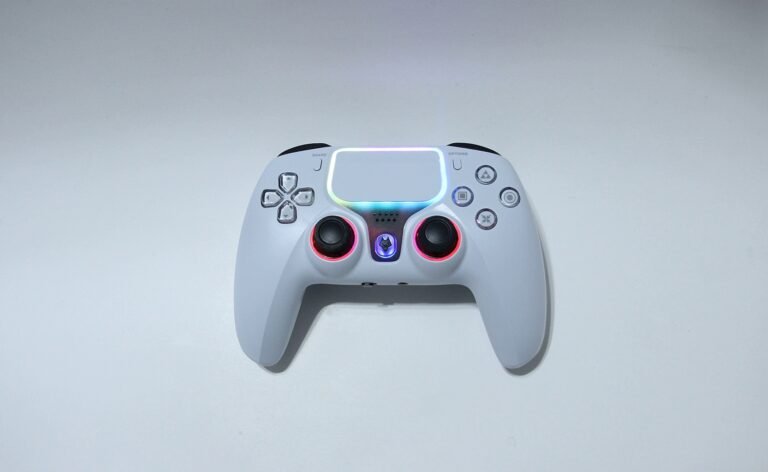
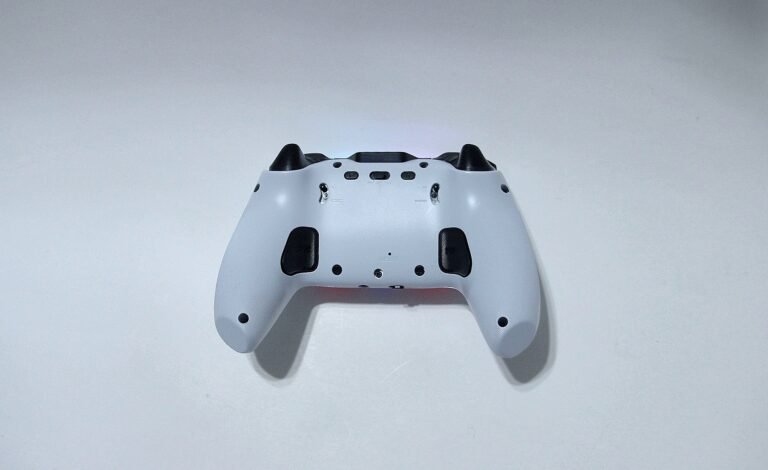
The controller has a simple design that looks fine, but it does feel somewhat cheap when you first hold it. That said, it was still comfortable to use and didn’t feel awkward during gameplay.
Connecting to a PC through Bluetooth was responsive, but I did not get any vibration feedback on that platform. When used on a PS5, the controller only worked with PS4 games, but in that setup both the vibration and audio feedback worked as expected.
I did run into an issue with the right analog stick. When pushing it to the right, the camera would sometimes move upward or drift on its own, which made FPS games and camera-heavy games frustrating to play. Turning the controller off and reconnecting it helped at times, but the issue wasn’t fully resolved until I followed the calibration steps listed in the manual.
The manual is important for this controller. Features like Turbo mode and calibration rely on specific button combinations that are not very obvious, so reading the instructions is necessary to understand how everything works. Battery life was another downside, as the controller lasted around 5 to 7 hours during longer play sessions, which felt short for extended gaming.
Who Would Likely Favor This Product?
This controller might be worth considering for gamers looking for a multi-compatible controller that works across PS4 and PC. It includes programmable buttons along with other added features like lighting, turbo functions, and calibration options, which may appeal to users who want more control and customization than a standard controller offers.
FAQ (Frequently Asked Questions)
Does the NBCP Wolf X-2 use Hall technology?
Yes. The controller uses Hall-effect joysticks and triggers, which rely on magnetic sensors instead of physical contact. This design is intended to reduce wear over time and help lower the risk of stick drift compared to traditional joystick designs.
Can joystick drift be fixed if it happens?
The controller supports software-based calibration through built-in button combinations. If the joystick starts behaving inaccurately, recalibration can help restore proper movement without needing to replace the controller.
Does the controller support vibration feedback?
Yes. The controller includes dual vibration motors that provide feedback during supported games. Vibration behavior depends on the platform and the game being played.
How many sensitivity levels does the right joystick have?
The right joystick includes three sensitivity levels, adjustable using a physical switch:
Standard sensitivity
Lower sensitivity (more controlled movement)
Higher sensitivity (faster response)
This is mainly useful for aiming in shooting or camera-heavy games.
What is the battery capacity and expected battery life?
The controller has a 1000mAh rechargeable battery. Battery life is rated at around 8 hours, depending on usage, vibration, and lighting settings. Charging is done through the USB-C port.
Does the controller enter sleep mode automatically?
Yes. If there is no input for about 15 minutes, the controller enters sleep mode to save power. Pressing the PS button wakes it up and reconnects it.
What Bluetooth version does the controller use?
The controller uses Bluetooth 5.0, which helps improve connection stability and power efficiency when used wirelessly.
What devices does the controller support?
The controller supports:
PS4 / PS4 Slim / PS4 Pro
Windows PC
iOS devices
Android devices
It also supports Steam input mode on PC.
What do the rear buttons do?
The controller includes rear back buttons that support macro programming. These buttons can be mapped to other controller inputs or combinations using the built-in programming controls described in the manual.
Does the controller support lighting customization?
Yes. The controller includes joystick light rings and platform lighting. Lighting effects can be adjusted, synchronized, or turned off entirely using button combinations.
Connectivity Questions
How do I connect the controller to a PS4?
To connect the controller to a PS4 for the first time:
Connect the controller to the PS4 using a USB-C cable
Press the PS button to pair it with the console
Once connected, unplug the cable
Press the PS button again to use the controller wirelessly
When the connection is successful, the blue platform light stays on.
How do I connect the controller to an Android device?
To connect on Android using Bluetooth:
Press and hold SHARE + PS for about 3 seconds
The platform light will flash during pairing
Open Bluetooth settings on your Android device
Select “Wireless Controller”
Once connected, the white light stays on
How do I connect the controller to an iPhone or iPad?
To connect on iOS:
Press and hold SHARE + PS for about 3 seconds
The platform light will flash rapidly
Open Bluetooth settings on your Apple device
Select “DUALSHOCK 4 Wireless”
The white light stays on once paired
How do I connect the controller to a PC using Bluetooth?
To connect wirelessly to a Windows PC or laptop:
Press and hold SHARE + PS for about 3 seconds
The platform light will flash
Open Bluetooth settings on the PC
Select “Wireless Controller”
When connected, the light stays on
How do I connect the controller to a PC using a USB cable?
For wired PC use:
Connect the controller to the PC using a USB-C cable
The platform light turns red
The controller defaults to X-input mode
If the controller is not recognized:
You may need to install the Xbox 360 controller driver depending on your Windows system
Can I use a 2.4G wireless receiver on PC?
Yes, but the 2.4G receiver is not included and must be purchased separately.
To connect using a receiver:
Insert the receiver into the PC
The receiver light flashes slowly
Press SHARE + PS for about 3 seconds
When pairing is complete, the light stays on
The controller defaults to X-input mode
How do I use the controller with Steam on PC?
To use the controller with Steam:
Connect the controller in PS4 mode
After powering on, press and hold the PS button for about 3 seconds
The orange light turns on, indicating PS4 mode
Open Steam and go to Controller Settings to test inputs
The controller supports Steam input and gyroscope functions in this mode.
Programming & Troubleshooting
How does Turbo mode work on this controller?
Turbo mode lets a button repeat rapidly when held down, which can be useful for actions like shooting or repeated attacks.
To enable Turbo:
Hold the button you want to use (Triangle, Circle, X, Square, L1, L2, L3, R1, R2, or R3)
While holding it, press the S button
That button will now repeat automatically when held
To turn Turbo off:
Press the same button again together with the S button
Can I change how fast Turbo presses the button?
Yes. Turbo speed can be adjusted between three levels.
Default speed: 12 presses per second
Press S + UP to increase speed
Press S + DOWN to decrease speed
Available speeds are approximately 5, 12, or 20 presses per second.
Can I swap the left joystick and D-pad controls?
Yes. This lets you switch movement from the joystick to the D-pad, or vice versa.
To swap them:
Press UP + L3 together for about 2 seconds while the controller is on
The controller will vibrate and the lights will flash to confirm
Repeat the same steps to switch them back.
How do I reset the controller to factory settings?
If settings feel off or you want to start fresh, you can restore default settings.
Press F + L3 + R3 together for about 3 seconds
The lights will flash, and all settings will reset
How do I calibrate the joysticks to fix drift issues?
This calibration helps fix drifting or inaccurate movement.
Steps:
Power off the controller
Hold F + Triangle for about 2 seconds until the light flashes slowly
Slowly rotate each joystick in a full circle 1–2 times
Let both sticks return to center
Press Triangle to save and exit
Joystick calibration is now complete.
How do I calibrate the gyroscope?
Gyro calibration helps improve motion controls.
Power off the controller
Hold F + Square for about 2 seconds until the light flashes
Place the controller flat on a table
Press Square to save and exit
How do I calibrate the triggers?
Trigger calibration helps when triggers don’t register full presses.
Keep the controller connected
Hold F + Circle for about 2 seconds until the light flashes
Press both triggers fully 1–2 times
Press Circle to save and exit
How do I program the back buttons?
Each back button can record up to 17 actions.
To program the left back button (ML):
Hold PL for about 2 seconds until the light flashes red
Press the buttons you want to record
Press PL again to save
To program the right back button (MR):
Hold PR for about 2 seconds until the light flashes purple
Record your inputs
Press PR again to save
If no input is made for 60 seconds, programming ends automatically.
Can I turn the back buttons on or off?
Yes.
Press PL + ML together for about 2 seconds to toggle the left back button
Press PR + MR together for about 2 seconds to toggle the right back button
The joystick lights will flash to confirm.
How does the right joystick sensitivity switch work?
The controller has a physical switch to change how fast the right joystick responds.
AD position: Default sensitivity
OFF position: Lower sensitivity (about 10%)
LV position: Higher sensitivity (about 20%)
This is especially useful for aiming in shooting games.
Can I customize or turn off the RGB lighting?
Yes. Lighting effects can be changed or disabled.
To enter lighting settings:
Hold F + OPTIONS for about 2 seconds
Controls:
UP: Solid or breathing colors
DOWN: Color cycling effects
LEFT: Turn lights off
RIGHT: Sync lights with platform
Press OPTIONS to save and exit.
Why is there no sound when I plug headphones into the controller?
The controller’s 3.5mm headphone jack supports CTIA-standard headphones.
If you’re not getting sound:
Check whether your headphones use CTIA or OMTP
OMTP headphones are not supported directly
If your headset is OMTP, you’ll need an OMTP-to-CTIA adapter or a CTIA-compatible headset
Once a compatible headset is used, audio should work normally.
How do I adjust the right joystick sensitivity?
The controller includes a physical sensitivity switch for the right joystick, mainly useful for shooting and aiming.
There are three sensitivity levels:
AD position: Default sensitivity (standard mode)
OFF position: Lower sensitivity (about 10%), slower and more controlled aiming
LV position: Higher sensitivity (about 20%), faster response for quick turns
You can change this at any time using the switch on the controller—no software required.
How can I test if the controller is working correctly on PC?
To test the controller on Windows:
Open Control Panel
Search for “Set up USB game controllers”
Select the connected controller
Click Properties to test buttons, sticks, and vibration
If you are still interested in knowing more about the product, click the button below
NBCP Wireless PS4 Controller – Dual Mode | Macro Back Buttons | Turbo & Vibration
Wide Compatibility: Designed for use with PS4, PS4 Slim, PS4 Pro, and Windows PCs running Windows 7, 8, 10, or 11. The controller supports both Bluetooth wireless and wired USB-C connections, allowing users to choose the setup that best fits their gaming environment.
Programmable Macro Buttons: Equipped with customizable macro back buttons that allow multiple commands to be assigned to a single input. This feature can be useful for executing repeated actions, complex button combinations, or reducing manual input in supported games.
Precision Triggers and Controls: Uses Hall-effect trigger technology for consistent input and reduced wear over time. The controller also includes responsive analog sticks and an ergonomic layout designed for steady control during extended play sessions.
Built-In Touchpad and Audio Support: Includes an integrated touchpad, lightbar, and a 3.5mm audio jack. These features support in-game navigation, visual feedback, and wired headset use for voice chat or game audio.
Turbo Function and Rechargeable Battery: Features a Turbo mode for rapid input activation. The built-in 1000mAh rechargeable battery provides up to around 8 hours of playtime, with automatic sleep enabled after periods of inactivity.
Images by Gaming Gear Drop unless otherwise noted. Additional photos sourced from the official NBCP Amazon listing for review purposes.