This post contains affiliate links. If you purchase through them, we may earn a small commission at no extra cost to you. This product was provided through the Amazon Vine program for our honest review. All opinions are our own. Thanks for supporting Gaming Gear Drop.
Pros
- Interactive display
- Hall effect sticks
- Hall effect triggers
- Tri-mode connectivity
- Programmable buttons
- Turbo functions
- Motion controls
- Responsive controls
- Long battery life
- Audio support
Cons
- Quality complaints
- Bad batch complaints
Quick Summary
The NBCP V6 Wireless PC Controller is a wireless gaming controller designed for Windows PC, Nintendo Switch, PlayStation 3, Android, iOS, and Android TV. It focuses on Hall Effect controls, an interactive display, onboard customization, and multi-platform compatibility.
The controller includes Bluetooth, 2.4GHz wireless, and wired USB connections, along with programmable buttons, Turbo functions, motion controls, and onboard calibration tools. Initial setup may require selecting the correct connection mode and referring to the interactive display when pairing or configuring controller settings.
Some users appreciate the interactive display, responsive controls, and onboard customization features, while others note Bluetooth connectivity issues, quality control concerns, and reports of receiving faulty units.
For more information, stick around and read below for my take on this product.
Hey there, welcome to our review of the NBCP V6 Wireless PC Controller.
For this review, we tested the Black version to offer honest insights and hopefully make your decision-making a tad easier. We have gathered the important details about this gaming controller to share with you, specifically focusing on its compatibility with Windows PC, Nintendo Switch, PlayStation 3, Android, iOS, and Android TV.
Throughout this post, we will discuss its key features, highlight user feedback, share our personal impressions, and explain who might benefit most from it.
So, if you are looking for a white PlayStation-style gaming controller with an interactive display and plenty of onboard customization options, stick around to find out if this suits your needs.
Key Features
Interactive Display and Controller Layout
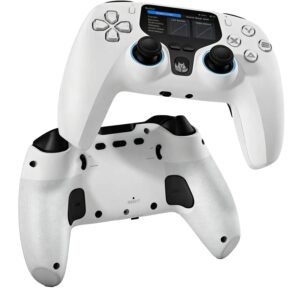
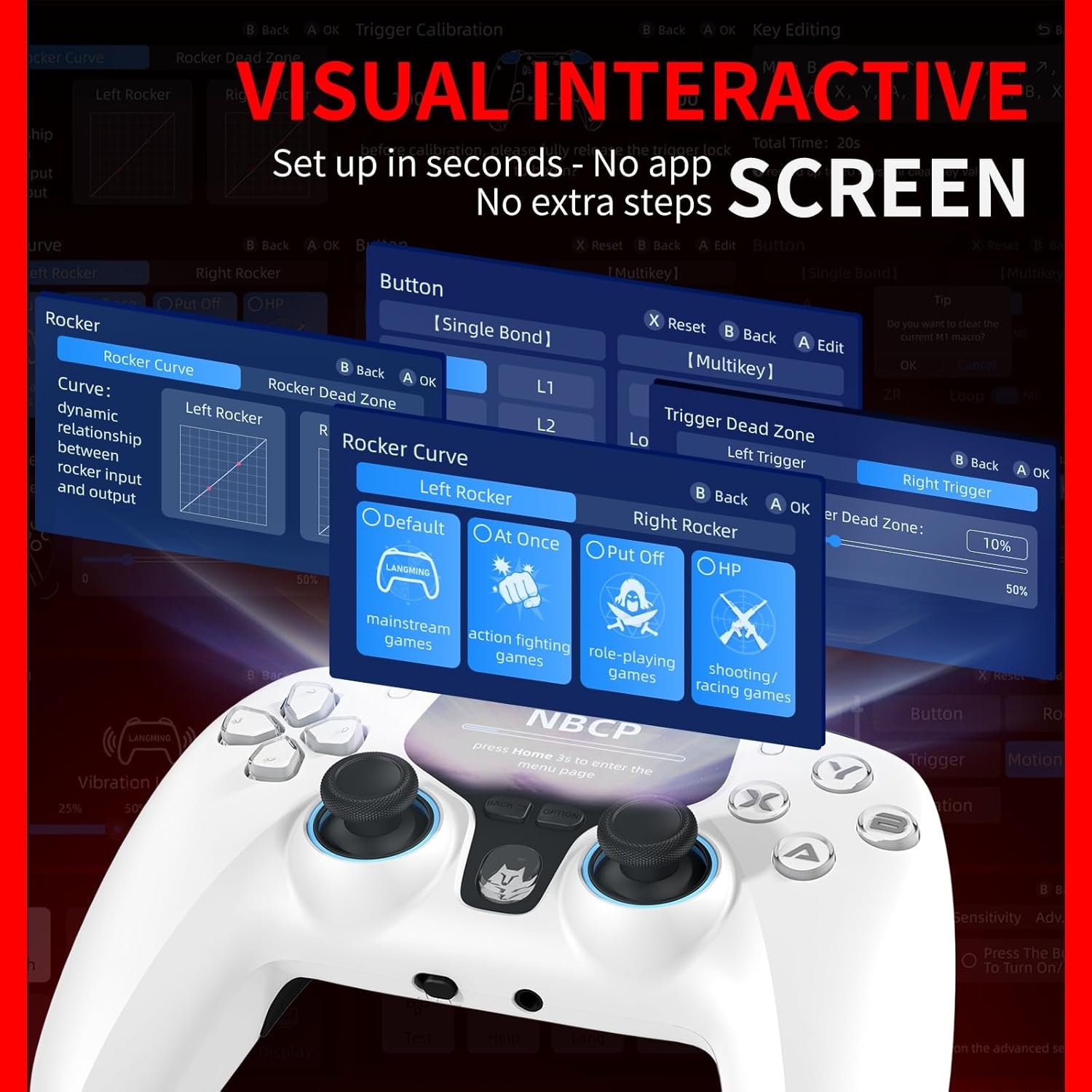
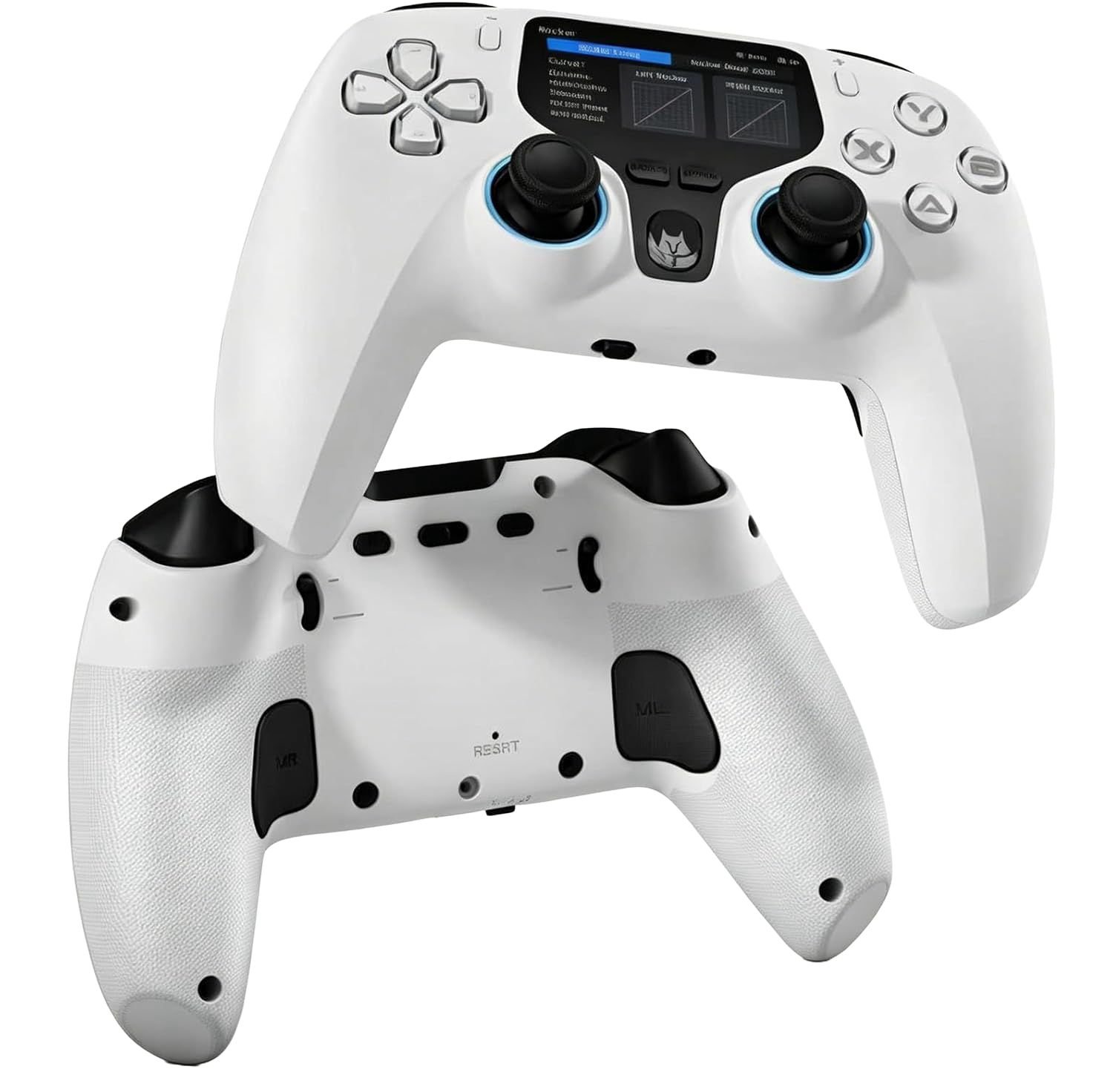
One of the standout features of the NBCP V6 is its built-in 2-inch display, allowing users to adjust many controller settings without relying on separate software.
The controller features Hall Effect thumbsticks, Hall Effect triggers with adjustable trigger locks, two programmable rear buttons, dedicated F and S buttons for Auto and Turbo functions, a 3.5mm headset jack for wired PC use, and individual switches that can disable the rear buttons to help prevent accidental presses during gameplay.
The display allows users to pair devices, switch connection modes, save up to four custom controller profiles, adjust button settings, trigger settings, joystick settings, vibration levels, motion controls, language selection, screen brightness, and restore factory settings when needed. It also includes built-in calibration tools and a button testing screen for checking controller inputs.
This reads a little more naturally because it introduces the controller itself before explaining everything the display can manage. It also keeps all of the physical hardware and onboard controls in one section, which is probably where readers will expect to find them.
Hall Effect Control System
The controller uses Hall Effect thumbsticks and Hall Effect triggers to help provide consistent movement while reducing wear that can occur with traditional analog components.
The triggers support both full trigger travel and shorter trigger travel modes, allowing users to switch depending on the type of game they are playing. The controller also includes adjustable joystick sensitivity and dead zone settings that can be changed directly through the controller menu.
Multi-Platform Connectivity
The NBCP V6 supports Windows PC, Android, iPhone and iPad, Nintendo Switch, Android TV, and PlayStation 3.
It can connect using Bluetooth, a 2.4GHz USB receiver, or a wired USB-C connection depending on the platform being used. PC users can also switch between XInput and DInput modes when needed for game compatibility.
On-Controller Customization
Several gaming features can be configured without requiring separate software.
The controller supports programmable back buttons, independent Turbo and Auto firing functions, adjustable vibration with five intensity levels, joystick sensitivity adjustments, dead zone settings, and four onboard controller profiles that can be saved for different games. Users can also switch between long and short trigger travel directly on the controller.
Calibration and Maintenance Features
The NBCP V6 includes built-in calibration tools for the thumbsticks, triggers, and six-axis gyroscope.
The controller also includes a button testing screen that can verify button inputs and provides factory reset options through the onboard display if settings need to be restored. Automatic sleep mode helps conserve battery when the controller is left idle during wireless use.
Motion Controls and Vibration
A built-in six-axis gyroscope provides motion controls on supported platforms and can be recalibrated directly from the controller menu.
Dual vibration motors support five selectable vibration levels, allowing players to increase or decrease vibration intensity based on personal preference.
Custom Button Shortcuts (Macros)
The controller includes rear buttons that support macros, which let multiple button actions be combined into a single press. This can help simplify certain in-game actions or reduce repeated button presses. Once set, the controller remembers these macro settings even after it is turned off.
Audio Support
When connected to a Windows PC using a wired USB connection, the controller supports a 3.5mm headset connection for audio and microphone functionality.
This feature is limited to wired PC mode and is not available while using Bluetooth or 2.4GHz wireless connections.
Performance & Feedback
Customers say the interactive display is one of the controller’s standout features, making it easy to adjust settings and switch between saved profiles without using separate software. The responsive controls, Hall Effect thumbsticks and triggers, and on-controller programming options are also frequently mentioned as useful additions for everyday gaming.
Users also comment that the controller feels comfortable to hold during longer play sessions. The programmable buttons, tri-mode connectivity, and long battery life are commonly highlighted as features that make it easy to use across multiple devices.
On the downside, some users report Bluetooth connectivity issues, including occasional pairing or connection stability problems depending on the device being used.
There are also reports of controllers developing issues over time, including connection problems, gyroscope performance, input latency, buttons becoming unresponsive, or display-related malfunctions. Some users note that these issues may be the result of receiving a faulty unit or bad batch.
My Thoughts: NBCP V6 Wireless Gaming Controller
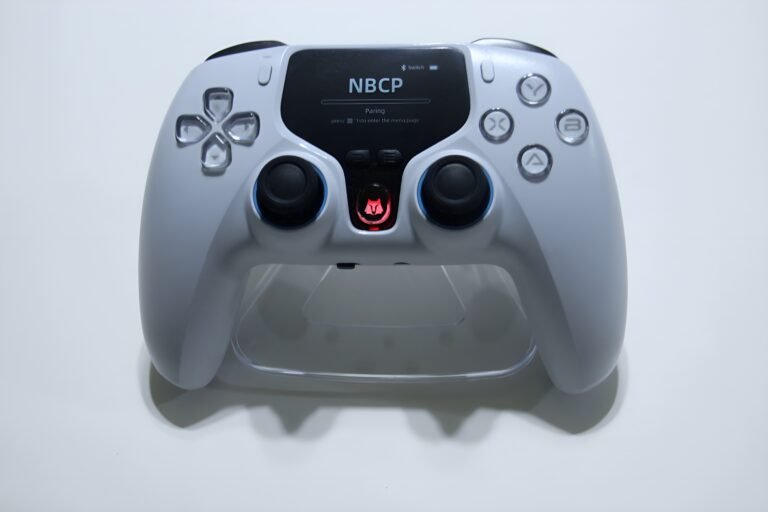
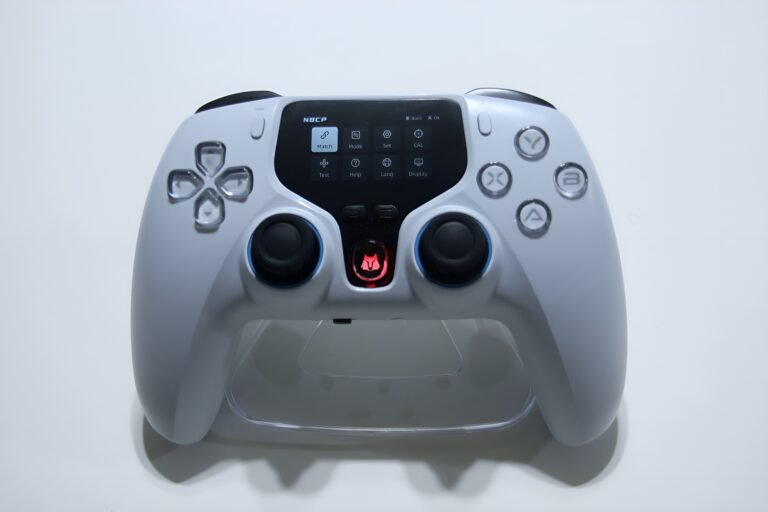
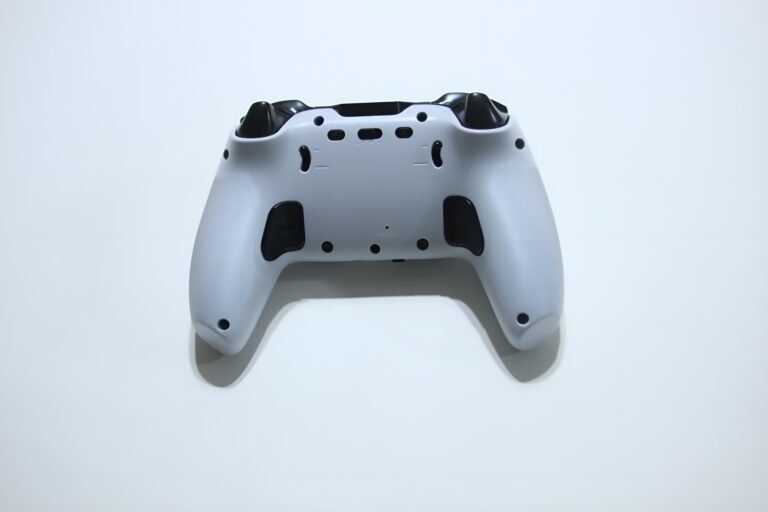
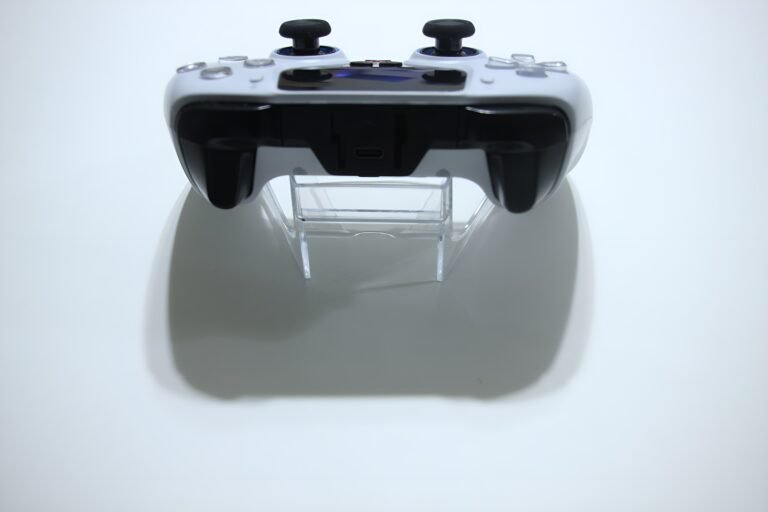
The controller has a comfortable layout that feels good in the hands, with responsive buttons and triggers that worked well across a variety of games. One feature that immediately stood out to me was the built-in display, which made it easy to adjust controller settings without needing separate software or constantly referring to the manual.
I used the controller on both Nintendo Switch and PC, and switching between Bluetooth, 2.4GHz wireless, and wired connections was straightforward. The display also made it convenient to change connection modes, adjust vibration strength, remap buttons, create macros, and access other controller settings directly from the controller.
Having so many customization options available on the display made the controller easy to personalize without interrupting gameplay. I found it much more convenient than navigating software menus on a computer or mobile device.
Overall, I enjoyed using the NBCP V6. The interactive display, comfortable layout, and wide range of onboard customization features made it a controller I found easy to use on a daily basis.
Who Would Likely Favor This Product?
This controller might be worth considering for gamers looking for a multi-compatible controller that works across PS4 and PC. It includes programmable buttons along with other added features like lighting, turbo functions, and calibration options, which may appeal to users who want more control and customization than a standard controller offers.
FAQ (Frequently Asked Questions)
What devices is the NBCP V6 compatible with?
It supports Windows 7, Windows 8, Windows 10, Windows 11, Nintendo Switch, PlayStation 3, Android, iOS, and Android TV.
Does it support Hall Effect sticks and triggers?
Yes. The controller uses Hall Effect thumbsticks and Hall Effect triggers with adjustable trigger travel.
Does it have an interactive display?
Yes. The built-in 2-inch display allows you to adjust controller settings, save profiles, pair devices, run calibration, and test buttons directly from the controller.
Does it support programmable buttons?
Yes. It includes programmable rear buttons along with onboard macro programming.
Does it support Turbo?
Yes. The controller supports both Turbo and Auto firing modes for compatible buttons.
Does it have motion controls?
Yes. It includes a built-in 6-axis gyroscope that supports multiple platforms.
Can I connect a headset?
Yes. A 3.5mm headset and microphone are supported when using a wired USB connection on a Windows PC.
Can I save multiple controller profiles?
Yes. The controller can store up to four custom profiles that can be selected from the display.
Connectivity Questions
How to connect to a Windows PC using USB
- Connect the controller to your PC using the included USB-C cable.
- The controller will default to XInput mode.
- To switch to DInput mode, hold the + and − buttons for about 3 seconds.
How to connect to a Windows PC using the 2.4GHz receiver
- Insert the USB receiver into your PC.
- On the controller, open the Mode menu.
- Select Connect to PC Receiver.
- Return to the main screen.
- Open Pairing and complete the connection.
- To switch between XInput and DInput, hold the + and − buttons for about 3 seconds.
How to connect to Android or iPhone
- Open the Mode menu.
- Select Phone/Tablet.
- Return to the main screen.
- Open Pairing.
- On your phone, connect to Xbox Wireless Controller using Bluetooth.
How to connect to Android TV
- Insert the USB receiver into the Android TV.
- Open the Mode menu.
- Select Connect to Android TV.
- Return to the main screen.
- Open Pairing to complete the connection.
How to connect to Nintendo Switch
- Enable Pro Controller Wired Communication if using a wired connection.
- Open the Mode menu.
- Select Switch.
- Return to the main screen.
- Open Pairing and wait for the controller icon to appear.
- Press A when prompted to finish pairing.
Programming & Troubleshooting
How to enable Turbo
- Hold the F or S button.
- Press the supported button you want to assign.
- Repeat the shortcut to disable Turbo.
How to record a macro
- Open the controller’s display.
- Go to the button settings menu.
- Assign the desired button functions.
- Save the profile when finished.
How to adjust vibration
- Open the controller settings.
- Select Vibration.
- Choose one of the five vibration intensity levels.
- Save the setting if desired.
How to adjust joystick sensitivity and dead zones
- Open the controller settings.
- Select Joystick Settings.
- Adjust stick sensitivity or dead zone values.
- Save the changes to your profile.
How to switch trigger travel
- Use the trigger lock switches on the controller.
- Select either short or full trigger travel based on your preference.
How to calibrate the controller
- Open the Calibration menu from the display.
- Select joystick, trigger, or gyroscope calibration.
- Follow the on-screen instructions.
- Save when calibration is complete.
How to test controller buttons
- Open the Key Test menu.
- Press each button or move each stick.
- Verify the inputs are responding correctly.
How to change screen brightness
- Open Settings.
- Select Brightness.
- Choose the desired brightness level.
How to restore factory settings
- Open the Initialize menu.
- Confirm the reset.
- The controller will restore its default settings.
How does Auto Sleep work?
The controller automatically enters sleep mode after 10 minutes of inactivity while connected wirelessly. Press the Home button to wake and reconnect it.
What happens when the battery is low?
When the battery falls below 15%, vibration is disabled automatically. The battery icon turns red, and the Home indicator flashes until the controller is charged.
If you are still interested in knowing more about the product, click the button below
NBCP V6 Wireless PC Controller – Interactive Display | Hall Effect Controls | Multi-Platform Support
- Multi-Platform Compatibility
Supports Windows 7, Windows 8, Windows 10, Windows 11, Android, iOS, and compatible TVs. Compatible with Steam, Epic Games, and Xbox Game Pass. Supports Bluetooth, 2.4GHz wireless, and wired USB-C connections. - Interactive Display
Features a built-in 2-inch display that allows users to view and adjust controller settings directly on the controller. Supports profile switching, pairing mode selection, vibration settings, button mapping, joystick and trigger sensitivity adjustments, and Turbo settings. - Hall Effect Joysticks and Triggers
Uses Hall-effect joysticks and Hall-effect triggers designed to provide smooth control while helping reduce stick drift and wear over time. Includes dual-stage trigger locks for switching between short and full trigger travel. - Joystick and Gyroscope Calibration
Supports onboard calibration and repair functions for the joysticks, gyroscope, and triggers through the interactive display. These tools help recalibrate supported controller functions when needed. - Programmable Controls
Includes programmable macro buttons and Turbo functions. Turbo modes and macro settings can be configured directly through the interactive display. - Motion Controls
Features a built-in 6-axis gyroscope for motion control in supported games. - Vibration Feedback
Includes dual vibration motors with four selectable vibration intensity levels. - 1000Hz Polling Rate
Supports a 1000Hz polling rate for faster input reporting during compatible gameplay. - Audio Support
Includes a 3.5mm audio jack for audio output when connected to a PC using a wired USB connection. - Included Accessories
Includes the wireless controller, USB Type-C charging cable, 2.4GHz USB wireless adapter, and user manual.
Images by Gaming Gear Drop unless otherwise noted. Additional photos sourced from the official NBCP Amazon listing for review purposes.