ECHTPower EP 05 TFT Screen Gaming Controller Review

This post contains affiliate links. If you purchase through them, we may earn a small commission at no extra cost to you. This product was provided through the Amazon Vine program for our honest review. All opinions are our own. Thanks for supporting Gaming Gear Drop.

Pros

  • Multi-compatible
  • Programmable
  • Hall triggers
  • Motion controls
  • RGB lighting
  • Touchpad
  • Audio support

Cons

  • Bad batches
  • Connection issues
  • Setup

Quick Summary

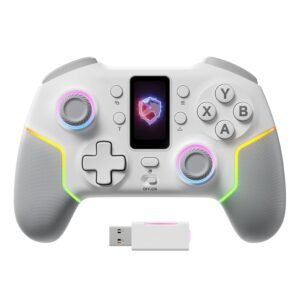
The ECHTPower EP05 is a wireless gaming controller designed for PC, Nintendo Switch, and mobile devices. It focuses on onboard customization through a built-in TFT screen, along with features like Hall-effect sticks and multiple connection options.

It supports Bluetooth, 2.4GHz wireless, and wired connections, allowing it to be used across different platforms. Settings such as vibration, lighting, and button mapping can be adjusted directly on the controller without additional software.

Some users appreciate the screen controls, responsive input, and multi-platform support, while others report connection issues, shorter battery life, and the lack of gyro support.

For more information, stick around and read below for my take on this product.

Hey there, welcome to our review of the ECHTPower EP05 Wireless Gaming Controller.

For this review, we tested this controller to offer honest insights and hopefully make your decision-making a tad easier. We have gathered the important details about this gaming controller to share with you, specifically focusing on its compatibility with PC, Nintendo Switch, Android, and iOS devices.

Throughout this post, we will discuss its key features, highlight user feedback, share our personal impressions, and explain who might benefit most from it.

So, if you are looking for a white wireless controller with a TFT screen to customize settings directly on the device for PC, Switch, or mobile use, stick around to find out if this suits your needs.
Key Features​

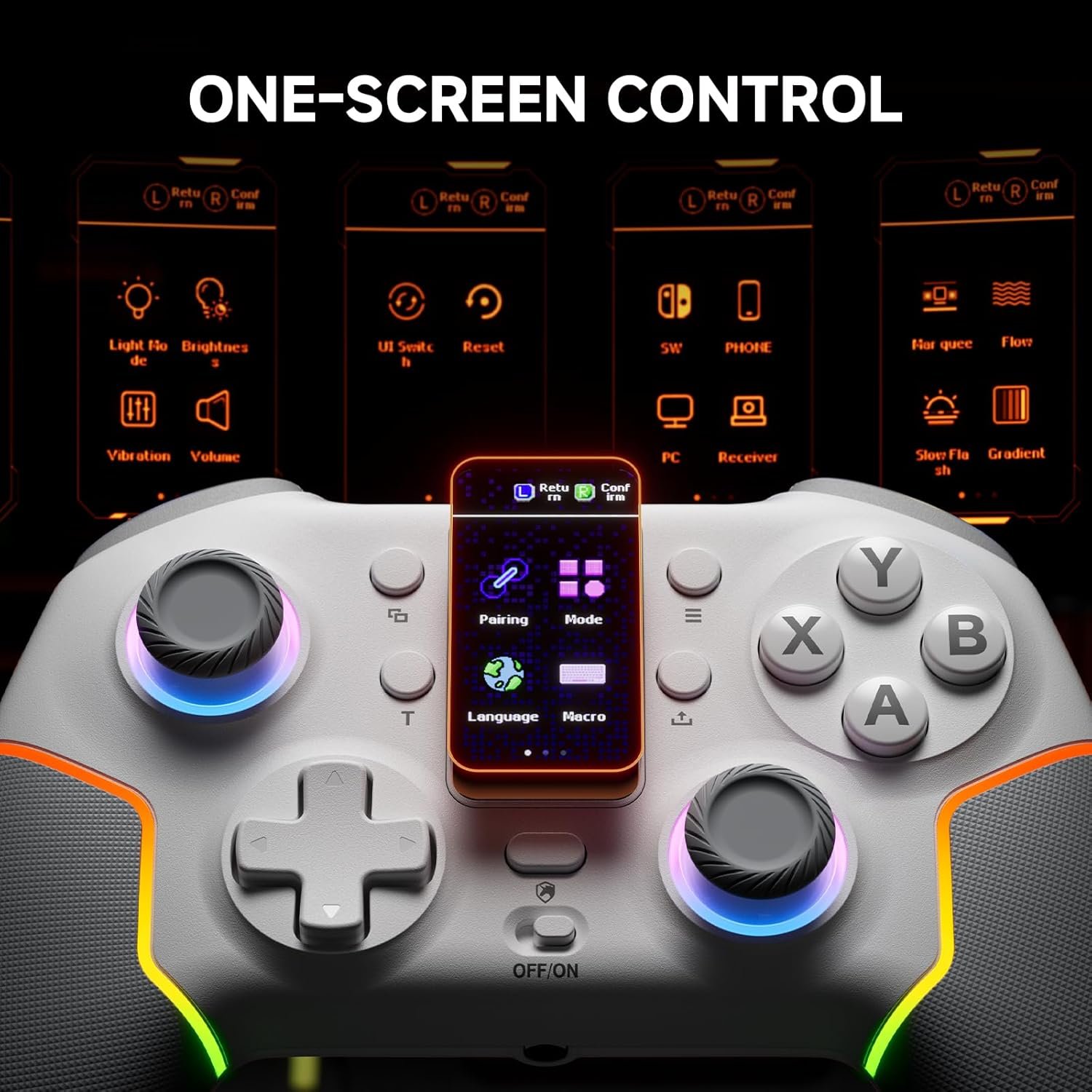
Onboard Screen Controls

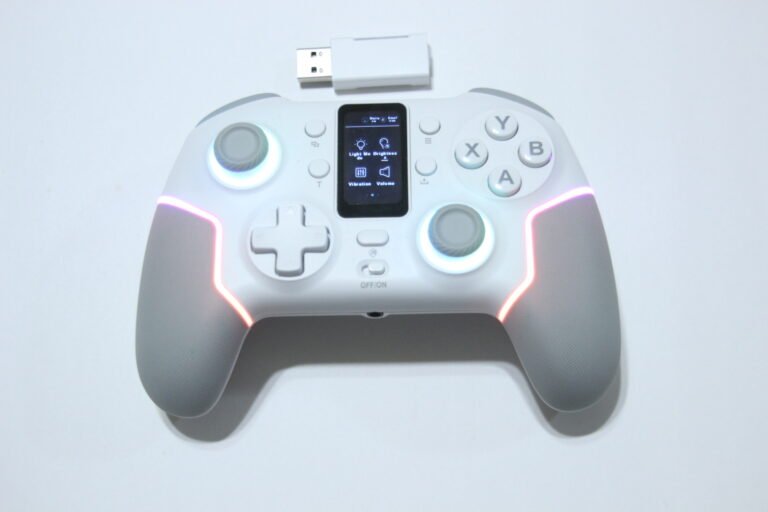
The controller includes a 1.47-inch TFT screen that allows you to adjust settings directly on the device.

Through the built-in menu, users can change vibration levels, lighting modes, turbo settings, button mapping, and other options without needing software. Navigation is handled using the D-pad and buttons on the controller.

Hall Effect Stick System

This controller uses Hall-effect joysticks, which are designed to provide consistent input over time.

These sticks rely on magnetic sensors instead of traditional contact-based parts. This design helps reduce wear and can maintain smoother movement during gameplay.

Adjustable Trigger Modes

The triggers support adjustable input styles that can be changed depending on how the controller is used.

This allows for quicker presses in some situations or more controlled input in others, depending on the selected setting.

Multi-Mode Connectivity

The controller supports several connection methods across different devices.

It can connect to a PC using a wireless receiver, Bluetooth, or a wired USB connection. It also supports Nintendo Switch, Android, and iOS devices through selectable modes in the onboard menu.

Turbo Function Settings

Turbo functionality can be assigned to multiple buttons, including A, B, X, Y, and shoulder buttons.

There are both manual and automatic turbo options. Users can also adjust the turbo speed or clear all assigned turbo functions directly from the controller.

Back Button Customization

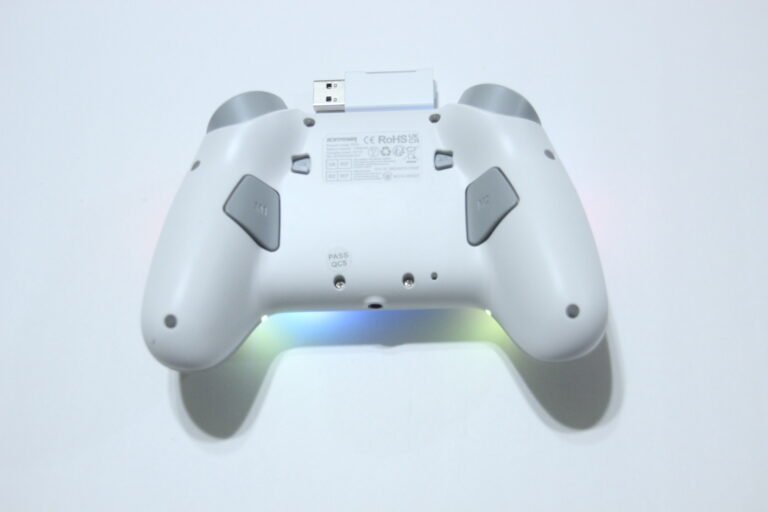
The controller includes rear buttons that can be programmed for different inputs.

Users can assign actions such as standard buttons, D-pad directions, or stick clicks. These settings are configured through the onboard menu and can be reset when needed.

Lighting and Vibration Controls

The controller includes adjustable lighting effects and vibration settings.

Users can change brightness, lighting modes, and vibration intensity through the onboard menu without external software.

Built-In Battery and Charging

The controller is powered by a 1000mAh rechargeable battery.

It charges using a standard cable connection, and the manual recommends fully charging the device before first use.

Performance & Feedback

Customers say the controller feels solid in hand and gives a more premium feel than expected. The built-in screen is often mentioned as useful for quick adjustments, especially since it allows changes without needing extra software. Some also like the multi-platform support, noting that it works across different devices without much setup once connected.

Users also point out the Hall-effect sticks and overall responsiveness during gameplay. The controls feel smooth, and the layout is described as comfortable for longer sessions. The ability to customize settings directly on the controller is another feature that gets mentioned, especially for those who prefer making quick changes without opening apps.

On the downside, some users report connection issues. This includes trouble pairing through Bluetooth or the 2.4GHz receiver, as well as occasional random disconnections. Battery life is another concern, with some mentioning that it drains faster than expected depending on usage.

A few users also note that the controller does not include gyro support, which may limit its use for certain games that rely on motion controls.

My Thoughts: ECHTPower EP05 TFT Screen Gaming Controller

This controller has a flashy design, but the battery feels a bit limited. I tested it on both Nintendo Switch and PC, and the overall look stands out right away. The RGB lighting looks clean, and the display screen is a nice addition. I liked being able to adjust settings directly on the controller, although the options are fairly basic and not very deep for advanced customization.

It was easy to connect using Bluetooth, wired, or the wireless receiver, which made switching between devices simple. The controller felt a little awkward in my hands at first, but it became more comfortable after some use. The D-pad, though, was not very enjoyable to use, especially for 2D games where more precise input matters.

Battery life was the main drawback for me. With regular use, it lasted around 3 to 5 hours before getting low, which feels shorter compared to other controllers I’ve used. It’s also possible that I may have received a bad unit, as battery performance can vary between batches.

Who Would Likely Favor This Product?

Gamers who want a controller with built-in screen controls might want to consider this, especially if they prefer adjusting settings without using software. It may also suit those who like having quick access to features like vibration, lighting, and button changes directly on the controller.

Players using multiple devices might want to look into this as well, since it supports PC, Switch, mobile, and different connection types. Those who prefer Hall-effect sticks for smoother input and reduced wear may also find it useful.

This controller may also appeal to casual or mid-level players who want simple customization options without getting into more advanced setup tools.

FAQ (Frequently Asked Questions)

Does this controller support PC?


Yes, it works with Windows PC.


Is it compatible with Nintendo Switch?


Yes, it supports Nintendo Switch.


Can it be used on mobile devices?


Yes, it works with Android and iOS.


Does it support Bluetooth?


Yes, Bluetooth is supported.


Does it have gyro support?


No, it does not include gyro.


Does it work with Xbox or PlayStation?


No, it is not compatible with Xbox or PlayStation.


Does it require software to customize settings?


No, settings can be adjusted directly on the controller using the screen.

Connectivity Questions

What are the Connection Methods:

  • 2.4GHz USB receiver
  • Bluetooth
  • USB wired connection


How to connect to PC (2.4GHz Receiver):

  1. Turn the controller ON
  2. Hold the HOME button for 3 seconds to open the menu
  3. Select “Mode” → choose “Receiver”
  4. Go to “Pairing” and confirm
  5. Plug the USB receiver into your PC
  6. Press the button on the receiver to complete pairing


How to connect to PC (Bluetooth):

  1. Turn the controller ON
  2. Hold the HOME button for 3 seconds
  3. Select “Mode” → choose “PC”
  4. Go to “Pairing” and confirm
  5. Turn on Bluetooth on your PC
  6. Select “Xbox Wireless Controller” from the device list


How to connect to Nintendo Switch:

  1. Turn the controller ON
  2. Hold the HOME button for 3 seconds
  3. Select “Mode” → choose “SW”
  4. Go to “Pairing” and confirm
  5. Pair through the Switch controller settings


How to connect to Phone (Bluetooth):

  1. Turn the controller ON
  2. Hold the HOME button for 3 seconds
  3. Select “Mode” → choose “Phone”
  4. Go to “Pairing” and confirm
  5. Enable Bluetooth on your phone
  6. Select “Xbox Wireless Controller”


How to connect using USB (Wired):

  1. Turn the controller ON
  2. Plug the USB cable into the controller and device
  3. The controller will connect automatically

Programming & Troubleshooting

How to reset the controller:

  • Use a pin to press the reset hole on the back
    OR
  1. Turn the controller ON
  2. Hold HOME for 3 seconds
  3. Go to “Reset”
  4. Hold R1 for 3 seconds


How to switch modes (X-input / D-input):

  1. Connect using the receiver
  2. Hold the required button combination for 5 seconds
  3. Repeat to cycle modes


How to calibrate the controller:

  1. Turn the controller OFF
  2. Hold A + X and turn it ON
  3. Rotate both sticks fully 2–3 times
  4. Press triggers fully 2–3 times
  5. Place controller flat and confirm calibration


How to set turbo:

  • Hold Turbo + desired button → manual turbo
  • Press again → auto turbo
  • Press again → disable turbo
  • Hold Turbo for 3 seconds → clear all


How to adjust turbo speed:

  • Turbo + Up → fast
  • Turbo + Right → medium
  • Turbo + Down → slow


How to customize back buttons:

  1. Hold HOME for 3 seconds
  2. Go to “Macro”
  3. Select M1 or M2
  4. Record inputs
  5. Press Start to save


How to adjust lighting:

  1. Hold HOME for 3 seconds
  2. Go to “Lighting Mode” or “Brightness”
  3. Select your preference


How to adjust vibration:

  1. Hold HOME for 3 seconds
  2. Go to “Motor Settings”
  3. Adjust intensity 

If you are still interested in knowing more about the product, click the button below

ECHTPower Wireless PC Gaming Controller – TFT Screen | Hall-Effect Joysticks | Multi-Platform
  • Built-in TFT Screen Controls: Adjust settings directly on the controller without using software or apps. Supports vibration, RGB lighting, turbo, trigger travel, and button mapping through the onboard screen.
  • Hall-Effect Joysticks: Designed to reduce stick drift and maintain consistent input over time. Provides stable control across shooters, racing, and other game types.
  • Dual Hall Triggers (Adjustable Travel): Switch between 2mm short travel and 6mm long travel. Short mode allows faster inputs, while long mode offers more controlled trigger movement.
  • 1000Hz Polling Rate Support: Supports up to 1000Hz polling rate in 2.4GHz wireless or wired mode for more frequent input updates and improved responsiveness.
  • Multi-Platform Compatibility: Works with Windows PC, Nintendo Switch, Android, and iOS devices. Supports Bluetooth, 2.4GHz wireless receiver, and USB-C wired connections.
  • Durable Button Design: Uses conductive gel buttons rated for repeated use, designed to maintain consistent input over time.
  • Compatibility Limitations: Not compatible with Xbox or PlayStation systems. Requires switching to the correct rear mode before pairing.

Images by Gaming Gear Drop unless otherwise noted. Additional photos sourced from the official ECHTPower Amazon listing for review purposes.