This post contains affiliate links. If you purchase through them, we may earn a small commission at no extra cost to you. This product was provided through the Amazon Vine program for our honest review. All opinions are our own. Thanks for supporting Gaming Gear Drop.
Pros
- Budget Friendly
- Responsive Controls
- Comfortable Handling
- Programmable Rear Buttons
- Good Battery Life
- Bluetooth 5.3
- Adjustable Vibration
- Turbo Support
- Motion Controls
- Replaceable Battery
- Joystick Calibration
Cons
- Connection Issues
- Quality Concerns
- Cheap Build Feel
- Sensitve Rear Buttons
- No Included Receiver
Quick Summary
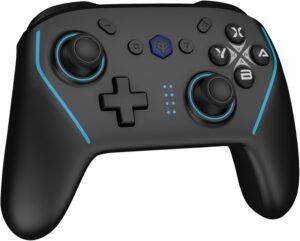
The NBCP X6 Wireless Controller is a rechargeable controllers designed for Nintendo Switch, Windows PC, Android, and iOS. It focuses on wireless gaming, customizable controls, and providing an additional controller for local multiplayer.
Each controller features Bluetooth 5.3, programmable rear buttons, adjustable vibration, Turbo functions, and six-axis motion controls for Nintendo Switch. The removable BL-5C battery can also be replaced when needed, while initial setup requires installing the battery and pairing the controller with a compatible device.
Customers appreciate the comfortable handling, responsive controls, and battery life. However, some have reported connection problems and concerns about build quality, while the rear button placement may lead to accidental presses.
For more information, stick around and read below for my take on this product.
Hey there, welcome to our review of the NBCP X6 Wireless Bluetooth Controller.
For this review, we tested the two-controller version to offer honest insights and hopefully make your decision-making a tad easier. We have gathered the important details about these wireless gaming controllers to share with you, specifically focusing on their compatibility with Nintendo Switch and Windows PC.
Throughout this post, we will discuss their key features, highlight user feedback, share our personal impressions, and explain who might benefit most from them.
So, if you are looking for a wireless controller for Nintendo Switch and PC with programmable buttons and replaceable batteries, stick around to find out if these controllers suit your needs.
Key Features
Controller Layout
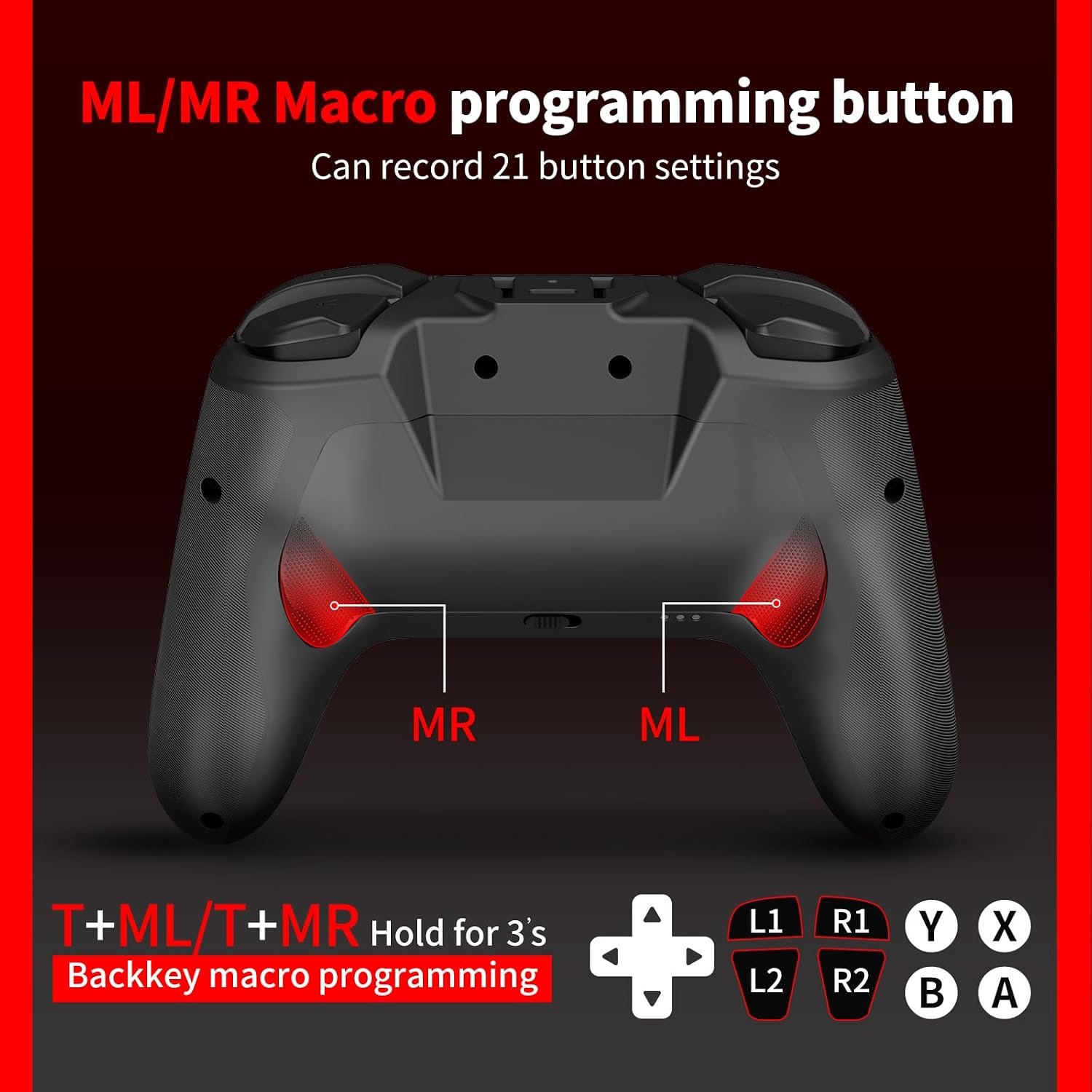
The NBCP X6 features a familiar gaming controller layout with two programmable rear buttons, ML and MR. These buttons can be assigned to other controls or used to record button combinations for different games.
The controller also lets you swap the functions of the left joystick and D-pad. This gives you another way to adjust the controls depending on how you prefer to play.
Bluetooth and Wired Connectivity
The NBCP X6 supports Bluetooth 5.3 for connecting to Nintendo Switch, Windows laptops, Android, and iOS devices. It also supports wired USB-C connections for Nintendo Switch and Windows PC.
On PC, the controller defaults to XInput mode, which helps it work with games that support Xbox-style controllers. You can also switch to Nintendo Switch mode for compatible Steam games.
The manual mentions an optional USB receiver for PC and PS3 connections, but this accessory is not included in the standard package.
Joystick Calibration
The NBCP X6 includes a joystick calibration function that allows you to readjust the movement range and center position of both analog sticks.
This may be useful if the sticks are not reaching their full movement range or if your character moves more slowly than expected. However, calibration is not a guaranteed fix for physical stick drift or worn components.
Turbo Controls
The controller includes Turbo support for the face buttons, shoulder buttons, triggers, L3, R3, and rear buttons. Turbo allows supported inputs to repeat without repeatedly pressing the same button.
You can switch between manual Turbo, automatic Turbo, and normal button operation. There are also three adjustable speeds: 5, 12, and 20 presses per second.
Programmable Rear Buttons
The ML and MR buttons can be programmed to perform individual button commands or recorded combinations. This provides additional controls that may be useful in games requiring frequent button inputs.
The rear buttons can also be turned off when they are not needed. According to the manual, programmed settings remain saved after powering off, but changing the connection mode or platform clears the recorded assignments.
Dual Vibration Feedback
The NBCP X6 includes dual vibration motors with four intensity levels: 0%, 30%, 70%, and 100%.
You can adjust the vibration directly from the controller, with 70% set as the default. The controller also turns off vibration automatically when the battery becomes low to help conserve power.
Six-Axis Motion Controls
The controller features six-axis motion controls for compatible Nintendo Switch games. This allows supported games to detect tilting and movement alongside regular button inputs.
The manual also includes gyroscope calibration, which may help if the motion controls begin responding incorrectly. Motion controls are not supported on PC, Android, or iOS according to the manual.
Replaceable Battery and Charging
Each NBCP X6 controller uses a removable BL-5C rechargeable lithium battery, advertised with a 600mAh capacity. Unlike controllers with sealed batteries, this design allows the battery to be replaced by opening the rear battery compartment.
The controller includes a sliding battery-cover switch that provides access to the battery. Charging is handled through USB-C, with indicator lights showing charging progress and when the battery is fully charged.
When the battery runs low, the controller flashes its channel indicator and automatically disables vibration. The manual also lists a Bluetooth connection range of approximately 6 to 8 meters, depending on the environment.
Performance & Feedback
Customers have shared positive feedback about the NBCP X6 controller’s comfortable handling and responsive controls. The ergonomic design makes the controllers comfortable to hold during gameplay, while some customers describe the build quality as decent for the price.
The programmable rear buttons are another feature that receives positive comments, giving players additional options for customizing their controls. Battery life is also mentioned favorably, with customers appreciating the convenience of wireless gaming without needing to recharge too frequently.
However, there are some complaints about connection reliability, including difficulties pairing the controllers or maintaining a stable connection during gameplay. Build quality is another concern, with some customers describing the materials as cheap or questioning how well the controllers will hold up over time. These experiences differ from the more positive reports about their overall construction.
My Thoughts: NBCP X6 Wireless Gaming Controller
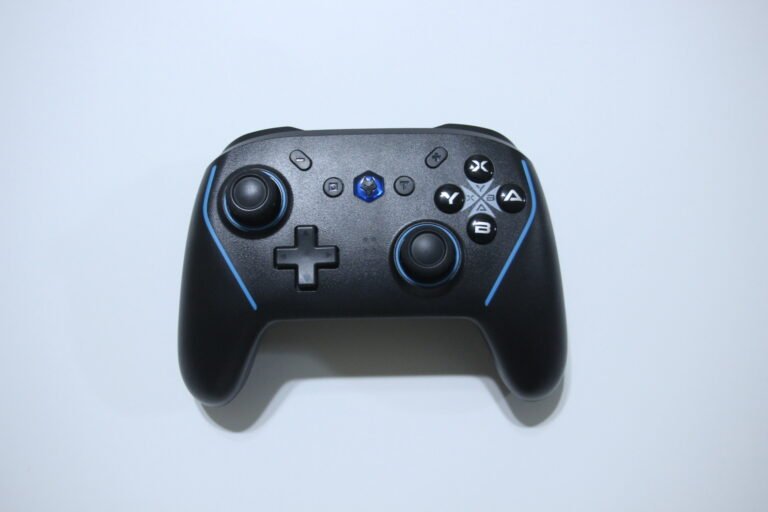
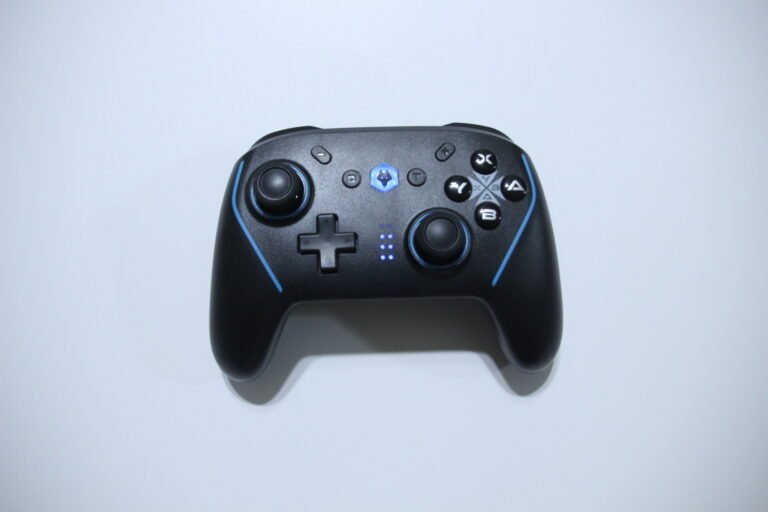
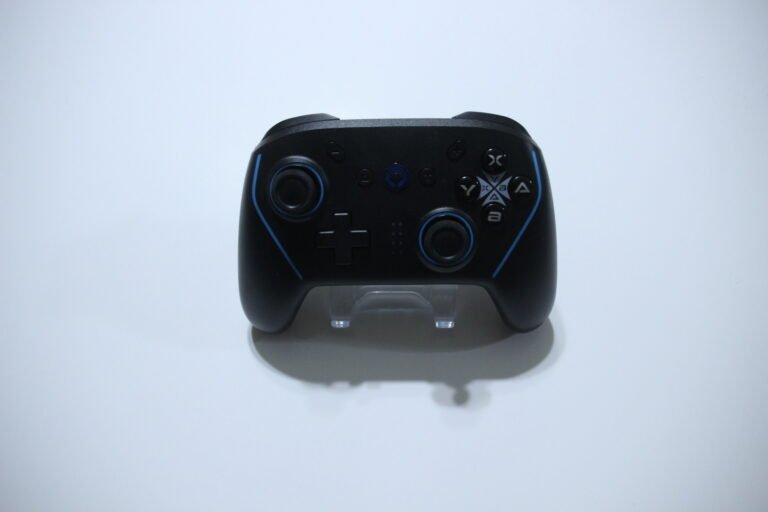
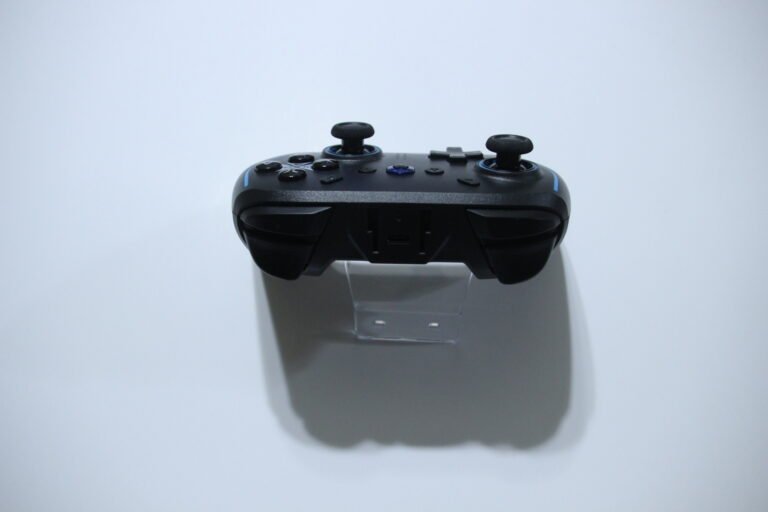
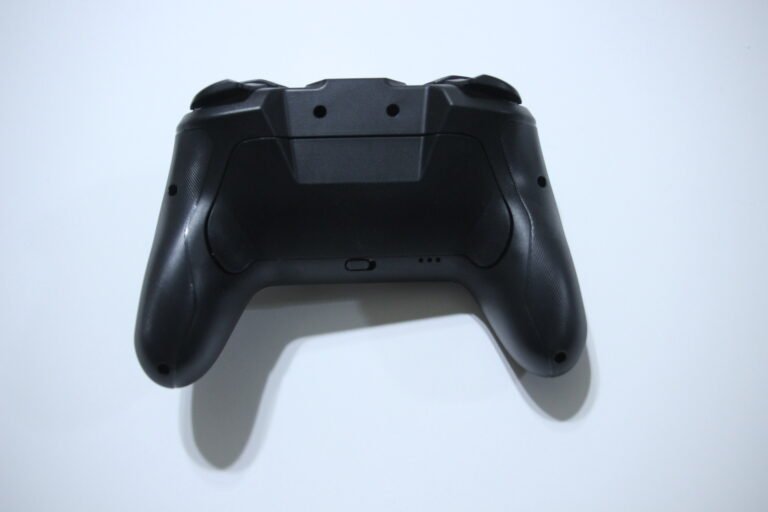
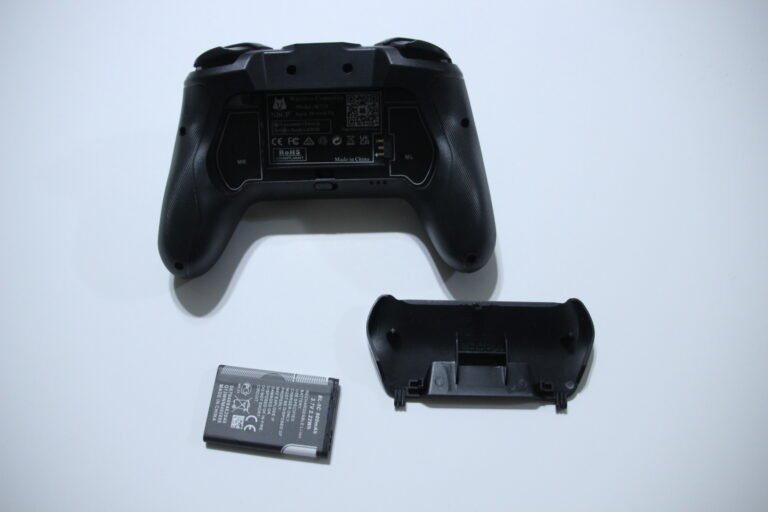
The NBCP X6 was enjoyable to use, with responsive controls, comfortable handling, and good vibration feedback. I also liked the Turbo functions, which provided some additional control options during gameplay. Getting started was fairly simple, as I only needed to install the battery and connect the controller through Bluetooth.
Battery life was another positive experience for me. I was able to continue playing for weeks without needing to recharge, which made it convenient for occasional gaming sessions. The controller doesn’t include a 2.4GHz receiver, although the manual mentions one as an optional accessory.
One thing I particularly appreciate is the button layout. The X6 reminds me of the NBCP X8, but I prefer this design because it combines a Nintendo Switch Pro Controller layout with Xbox-style button labels inside the buttons. This makes it easier to recognize the controls when switching between PC and Nintendo Switch games.
The rear buttons were the one part of the design I wasn’t too fond of. Since they’re positioned around the battery cover, gripping the controller too tightly can cause accidental presses. I had to be a little more careful with how I held it during gameplay.
Aside from the rear button placement, I had a good experience with the controller. Its familiar layout, battery life, and responsive controls worked well for the way I play games.
Who Would Likely Favor This Product?
Gamers who regularly switch between PC and Nintendo Switch might want to consider the NBCP X6. Its combination of Nintendo Switch and Xbox-style button labels can make it easier to recognize the controls when moving between platforms.
Gamers who prefer customizable controls may appreciate the programmable rear buttons, adjustable Turbo settings, and vibration options. These features provide additional ways to adjust the controller for different games.
Players who prefer replaceable batteries might also want to consider it. The removable BL-5C battery can be replaced when needed instead of relying on a permanently sealed battery.
However, gamers who tend to grip their controllers tightly may want to consider the rear button placement, as these buttons can be pressed accidentally during gameplay.
FAQ (Frequently Asked Questions)
What devices are compatible with the NBCP X6?
The NBCP X6 supports Nintendo Switch, Switch OLED, Switch Lite, Windows PC, Android, and iOS. The product listing also advertises Nintendo Switch 2 compatibility.
Does the NBCP X6 support Bluetooth?
Yes. The controller supports Bluetooth 5.3 for connecting to compatible devices.
Does it include a 2.4GHz USB receiver?
No. The standard package does not include a receiver. The manual mentions an optional receiver that must be purchased separately.
Does the controller support wired connections?
Yes. It supports USB-C connections for Windows PC and Nintendo Switch.
Does the controller have Hall Effect joysticks?
The manual does not identify the joysticks as Hall Effect. It does include joystick calibration to help correct certain movement problems.
Does it support motion controls?
Yes. The controller includes six-axis motion controls for compatible Nintendo Switch games. The manual does not confirm gyro support for PC, Android, or iOS.
Can the rear buttons be programmed?
Yes. The ML and MR buttons support individual button assignments and recorded combinations.
Does the controller have Turbo?
Yes. Turbo supports manual and automatic rapid-fire with three adjustable speeds.
Can vibration strength be adjusted?
Yes. The controller has four vibration levels: 0%, 30%, 70%, and 100%.
Does it have a rechargeable battery?
Yes. Each controller uses a removable BL-5C rechargeable battery, advertised with a 600mAh capacity.
Can the battery be replaced?
Yes. The battery can be removed and replaced through the rear battery compartment.
Does the controller support Nintendo Switch wake-up?
Yes. After the initial pairing, pressing HOME can wake and reconnect the controller to a supported Switch console.
Does it support software customization?
The supplied manual does not identify a dedicated customization app.
Connectivity Questions
How do I connect the NBCP X6 to Nintendo Switch?
- Open the Controllers menu on your Nintendo Switch.
- Select Change Grip/Order.
- With the controller powered off, hold HOME for approximately three seconds.
- Wait for the channel lights to flash while the controller searches for the console.
- Once connected, follow the on-screen instructions and press A when prompted.
For future connections, press HOME to wake and reconnect the controller.
How do I connect the controller to Nintendo Switch using USB-C?
- Place the Nintendo Switch in its dock.
- Connect the controller to the dock using a USB-C data cable.
- Wait for the first channel indicator to flash slowly.
- Once the console recognizes the controller, disconnect the cable.
- The controller should automatically continue through Bluetooth.
How do I connect the NBCP X6 to a Windows PC using Bluetooth?
- Enable Bluetooth on your Windows PC or laptop.
- Make sure the controller is powered off or in sleep mode.
- Hold Select (-) + HOME for approximately three seconds.
- Wait for the channel indicators to flash.
- Open Windows Bluetooth settings.
- Select Xbox Wireless Controller from the available devices.
- Complete the pairing process.
How do I connect the controller to PC using USB-C?
- Connect the controller to your PC using a USB-C data cable.
- Wait for Windows to recognize the controller.
- The controller should start in XInput mode.
- Channel indicator 1 flashes slowly when connected.
How do I connect the controller using the optional USB receiver?
- Insert a compatible receiver into your PC.
- Hold Select (-) + HOME for approximately three seconds.
- Wait for the controller’s four channel indicators to flash rapidly.
- Allow the controller to pair with the receiver.
- Once connected, channel indicator 1 and the receiver’s LED should remain lit.
The receiver is not included in the standard package.
How do I connect the NBCP X6 to Android?
- Enable Bluetooth on your Android phone or tablet.
- With the controller powered off, hold Select (-) + HOME for approximately three seconds.
- Wait for the channel indicators to flash.
- Open your device’s Bluetooth settings.
- Select Xbox Wireless Controller.
- Complete the pairing process.
How do I connect the NBCP X6 to iPhone or iPad?
- Make sure your device uses a compatible iOS version. The manual specifies a version later than iOS 10.
- Enable Bluetooth.
- Hold Select (-) + HOME for approximately three seconds while the controller is off.
- Wait for the channel indicators to flash.
- Select Xbox Wireless Controller from the Bluetooth list.
- Complete the connection.
How do I reconnect to a previously paired device?
Press HOME to wake the controller. It should attempt to reconnect to the previously paired device.
If Bluetooth pairing is unsuccessful, repeat the initial connection steps for your platform.
Programming & Troubleshooting
How do I activate Turbo?
- Hold the T button.
- Press the button you want to assign Turbo to.
- Repeat the combination to activate automatic Turbo.
- Repeat it a third time to disable Turbo.
Supported buttons include A, B, X, Y, L1, L2, L3, R1, R2, R3, ML, and MR.
How do I adjust the Turbo speed?
Hold T and press D-pad Up to increase the speed or D-pad Down to decrease it.
The three speeds are 5, 12, and 20 presses per second, with 12 set as the default.
Changing the connection platform clears the Turbo settings.
How do I program the ML and MR rear buttons?
- Connect the controller to your device.
- Hold T + ML or T + MR for approximately three seconds.
- Wait for the channel indicator to flash.
- Enter the button or combination you want to record.
- Press the same rear button to save and exit.
The buttons support individual assignments and recorded combinations. Single-button assignments can also use Turbo.
How do I turn the rear buttons on or off?
To toggle ML, hold Start (+) + ML for approximately three seconds.
To toggle MR, hold Start (+) + MR for approximately three seconds.
The channel indicator flashes to confirm the change.
How do I clear all programmed settings?
Hold Select (-) + Start (+) + T together for approximately three seconds.
This initializes the controller and clears its customized settings.
How do I adjust vibration?
- Connect the controller.
- Hold T.
- Move the left joystick upward to increase vibration or downward to decrease it.
- Choose between 0%, 30%, 70%, and 100%.
The default vibration level is 70%.
How do I calibrate the joysticks?
- Hold Select (-) + T for approximately three seconds.
- Wait for the channel indicator to flash.
- Rotate both joysticks through their full movement range.
- Return both sticks to the center.
- Exit calibration using the confirmation button indicated by the controller’s manual.
Calibration may help correct inaccurate movement ranges or center positions. It cannot guarantee repair of physically damaged joysticks.
How do I calibrate the gyroscope?
- Hold Start (+) + T for approximately three seconds.
- Place the controller flat on a stable surface.
- Allow it to remain still during calibration.
- Save and exit using the controller’s confirmation button.
The supplied manual does not clearly identify the final confirmation button.
How do I swap the left joystick and D-pad functions?
Hold L1 + Start (+) for approximately two seconds.
The controller vibrates to confirm that the functions have been swapped.
How do I switch between XInput and Nintendo Switch modes on PC?
When connected to a PC through USB, the controller defaults to XInput mode.
Hold HOME for approximately three seconds to switch to Nintendo Switch mode. Channel indicator 2 lights up when that mode is selected.
Nintendo Switch mode can also be used with compatible Steam controller settings.
How do I check the controller in Steam?
- Connect the controller to your PC.
- Open Steam.
- Go to Settings > Controller.
- Check whether Steam recognizes the controller.
- Open the available controller testing options.
How do I replace the BL-5C battery?
- Turn off the controller and disconnect the charging cable.
- Locate the battery-cover switch on the back.
- Push the switch fully to the right and hold it.
- Carefully lift the battery cover from its opening.
- Remove the old BL-5C battery.
- Insert a compatible replacement with the correct contact orientation.
- Reattach the cover securely.
Use a compatible replacement battery with the correct voltage, dimensions, and contacts.
Why is the vibration not working?
The controller automatically disables vibration when the battery becomes low.
Recharge the controller, then check the vibration setting using T and the left joystick.
How do I know when the controller is charging?
When charging while connected, the channel indicator flashes slowly and becomes steady when fully charged.
When charging while powered off, the indicator flashes slowly and turns off after charging is complete.
What should I do if Bluetooth pairing fails?
- Make sure the controller has enough battery power.
- Check that Bluetooth is enabled on the device.
- Remove the previous controller pairing from the device’s Bluetooth settings.
- Restart pairing using the appropriate button combination.
- Wait for the controller to reconnect.
The controller automatically stops searching if no connection is established after approximately two minutes.
What should I do if a rear button stops working?
Check whether ML or MR has been disabled using its Start (+) shortcut.
You can also clear the custom settings using Select (-) + Start (+) + T for approximately three seconds.
Why did my programmed buttons reset?
According to the manual, rear-button assignments are saved when the controller is turned off.
However, changing the connection mode or platform automatically clears recorded rear-button assignments.
If you are still interested in knowing more about the product, click the button below
NBCP X6 Wireless Bluetooth Controller 2-Pack | Switch 2, Switch & PC | Programmable Buttons | Turbo | Replaceable Battery
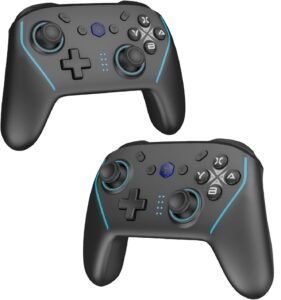
- Two Wireless Controllers in One Package: The NBCP X6 includes two Bluetooth controllers designed for Nintendo Switch, Switch 2, Switch OLED, Switch Lite, Windows PC, Android, and iOS devices. The two-controller package provides an option for local multiplayer, co-op gaming, or keeping an extra controller available.
- Bluetooth Connectivity & Controller Layout: Each controller supports Bluetooth 5.3 and features a familiar Nintendo Switch-style layout with Xbox-style button labels. It also supports wired USB-C connections for PC and Nintendo Switch, along with button shortcuts for switching between supported input modes.
- Programmable Rear Buttons & Turbo: The ML and MR buttons can be programmed with individual commands or button combinations. The controller also includes manual and automatic Turbo functions with three adjustable speeds: 5, 12, and 20 presses per second.
- Motion Controls & Adjustable Vibration: The NBCP X6 includes six-axis motion controls for compatible Nintendo Switch games and dual vibration motors with four intensity levels: 0%, 30%, 70%, and 100%. Joystick calibration and the option to swap the left joystick and D-pad functions are also available.
- Replaceable Battery & Charging: Each controller uses a removable 600mAh BL-5C rechargeable battery that can be replaced through the rear battery compartment. USB-C charging is supported, with indicator lights showing charging status and low-battery warnings. The controller also supports wake-up and automatic reconnection after the initial pairing.
Images by Gaming Gear Drop unless otherwise noted. Additional photos sourced from the official NBCP Amazon listing for review purposes.