Thunderobot G50S Controller Review – Wireless Gaming for PC & Switch

This post contains affiliate links. If you purchase through them, we may earn a small commission at no extra cost to you. This product was provided through the Amazon Vine program for our honest review. All opinions are our own. Thanks for supporting Gaming Gear Drop.

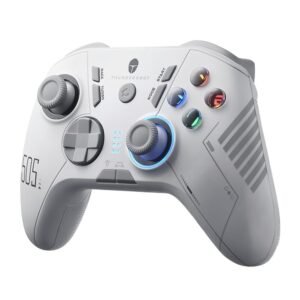
Thunderobot G50S wireless gaming controller with RGB face buttons and Bluetooth connectivity.

Pros

  • 6 Programmable Macro Buttons
  • Tri-Mode Connectivity (Bluetooth, 2.4G, USB-C)
  • Multi-Platform Support
  • Turbo Customization (Adjustable Speeds)
  • Adjustable Vibration (5 Levels)
  • Hall-Effect Triggers
  • 6-Axis Motion Control (Switch Support)
  • Onboard Controls (No Software Required)
  • Backlight Brightness Adjustment
  • Built-In Calibration & Reset Options

Cons

  • No RGB Lighting
  • Quality Control Concerns

Quick Summary

The Thunderobot G50S is a multi-platform gaming controller designed for Nintendo Switch, Windows PC, Android, and iOS devices. It supports Bluetooth, 2.4G wireless (via USB receiver), and wired USB-C connections, making it easy to switch between different setups.

Its standout feature is the inclusion of six programmable macro buttons, along with support for Turbo functions, adjustable vibration, and onboard customization. The controller also includes Hall-effect triggers and motion controls for compatible Nintendo Switch games.

While it offers a wide range of features, the overall design is fairly simple, and some users may find the setup process for advanced features takes a bit of time to learn. There are also occasional reports of units not lasting as long as expected.

For more information, stick around and read below for my take on this product.

Hey there, welcome to our review of the Thunderobot G50S Wireless Gaming Controller!

For this review, we spent time using the Thunderobot G50S across different platforms to get a better understanding of how it performs during everyday gaming. We also looked through the controller’s built-in features and setup options to see how easy it is to use and customize.

In this review, we’ll go over its key features, performance feedback, hands-on experience, and the type of player who may find it useful.

If you’re looking for a wireless controller with multiple connection options, programmable buttons, and support for Nintendo Switch, PC, and mobile devices, this breakdown should help you decide if the Thunderobot G50S fits your setup.

Key Features​

6 Programmable Macro Buttons

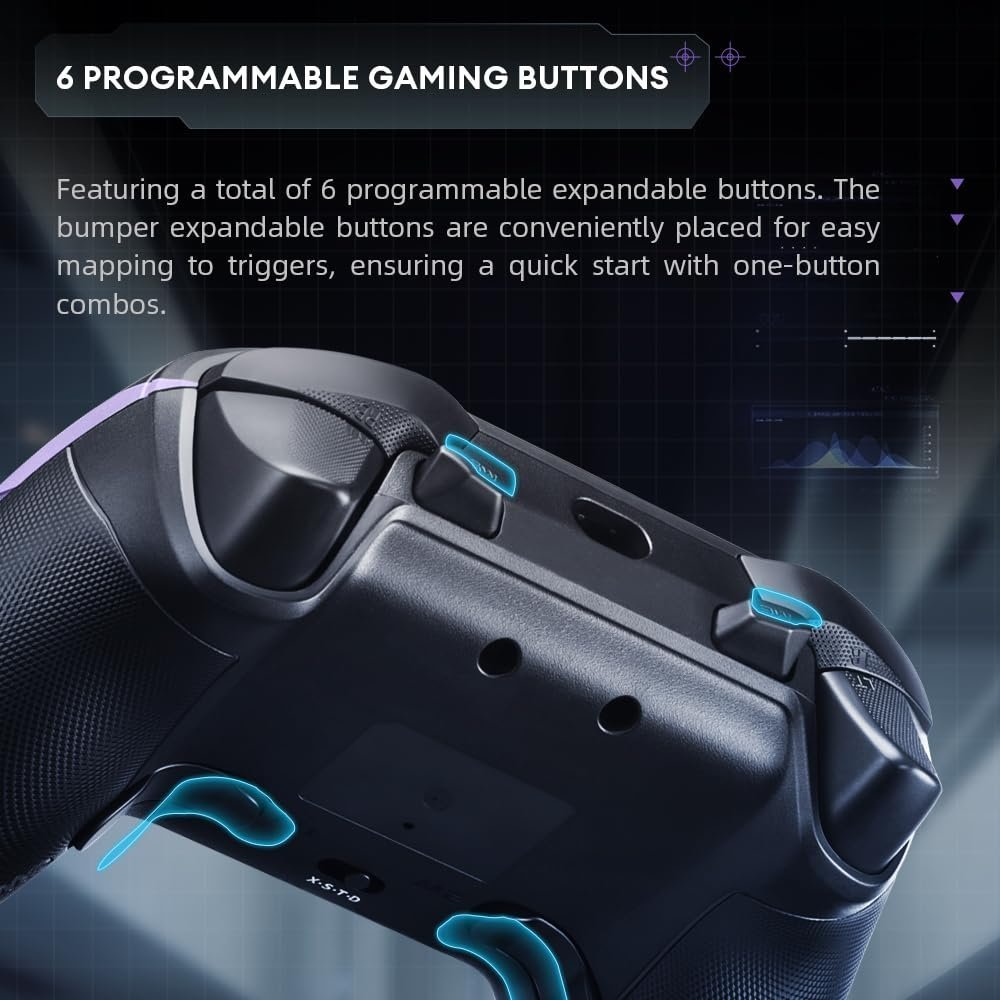
The Thunderobot G50S includes six dedicated macro buttons (M1–M6), allowing custom inputs or multi-button combinations to be assigned. These can be used for quick actions, repeated commands, or more complex gameplay setups depending on the game.

Tri-Mode Connectivity

The controller supports Bluetooth, 2.4G wireless (via USB dongle), and wired USB-C connections. A physical switch on the back lets you quickly change between modes, making it easy to use across different devices.

Multi-Platform Compatibility

The G50S works with Windows PC, Nintendo Switch, Android, and iOS devices. It also supports different input modes such as Xinput, Dinput, and Switch mode, depending on the platform being used

Hall-Effect Triggers & Joysticks

Equipped with Hall sensor triggers and analog sticks, the controller is designed for more precise input and reduced wear over time compared to traditional components.

Turbo Function Customization

Turbo can be assigned to multiple buttons, including macro keys, with adjustable speeds (5Hz, 10Hz, and 15Hz). This allows for repeated inputs without constant button pressing.

Adjustable Vibration Feedback

The controller includes dual vibration motors with five adjustable levels, ranging from full intensity down to completely off. Settings can be changed directly on the controller and are saved for future use.

Backlight Brightness Control

The G50S features adjustable backlighting with multiple brightness levels (0% to 100%). Lighting can also be turned off completely or restored to the previous setting.

6-Axis Motion Control (Switch Support)

When used with the Nintendo Switch, the controller supports six-axis motion sensing, allowing for motion-based gameplay in compatible titles.

Onboard Mode Switching & Customization

A dedicated MODE button allows switching between input types (Xinput, Dinput, Switch) without software. Additional onboard controls handle turbo, vibration, lighting, and macro recording directly on the controller.

Calibration & Reset Functions

The controller includes built-in calibration for triggers and joysticks, along with a reset option to resolve input issues without losing saved settings.

Thunderobot G50S controller rear view showing six programmable gaming buttons and trigger controls.

Performance & Feedback

Customers say the Thunderobot G50S feels responsive during gameplay, with smooth inputs across both Nintendo Switch and PC. The controller’s layout is described as easy to get used to, and the six programmable buttons provide added flexibility for custom inputs and quick actions during gameplay.

Customers also mention the controller’s multi-platform compatibility, along with Bluetooth, 2.4G wireless, and wired connection options, as useful additions. These features make it easier to switch between devices while still having access to onboard customization like turbo, macros, vibration, and lighting controls.

Some users mention that certain units stopped working sooner than expected. Others comment that the overall design feels more basic, and the lack of RGB lighting may be a downside for those looking for more visual customization.

My Thoughts: Thunderobot G50S Gaming Controller

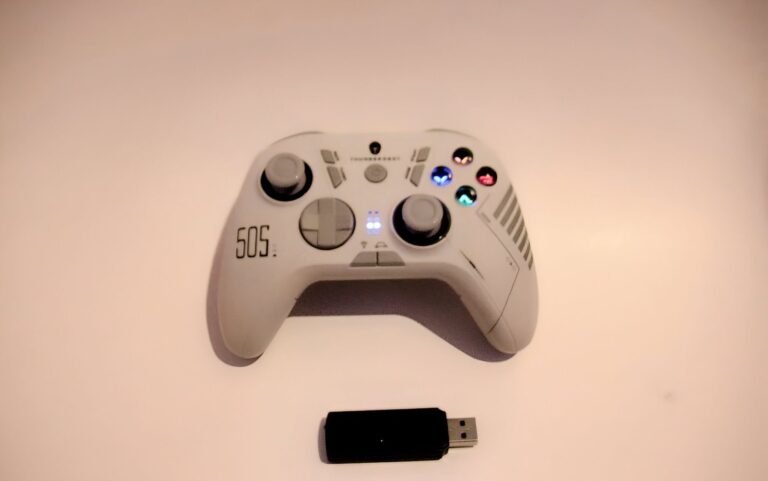
Thunderobot G50S wireless gaming controller with USB receiver during hands-on testing.

The Thunderobot G50S features a layout that includes six programmable macro buttons, which stand out as one of its more notable additions. These buttons can be used to assign custom inputs or functions like turbo, depending on the game.

During use, the controller felt consistent across different types of games. The macro buttons can be useful in situations where repeated inputs are needed, such as in action-heavy titles or games that benefit from quick access to certain commands. They can also help players who prefer having additional control options beyond the standard layout.

The overall design is straightforward, with dedicated buttons and switches for changing connection modes and adjusting settings. This makes it easier to move between Bluetooth, 2.4G wireless, and wired connections without relying on complex button combinations.

For games that involve a larger number of inputs, such as MMO-style gameplay, the extra programmable buttons can make certain actions easier to manage compared to a standard controller layout.

Who Would Likely Favor This Product?

Nintendo Switch players may find the Thunderobot G50S worth considering due to its compatibility with the console and support for six-axis motion controls. This can be useful in games that rely on motion input for aiming or movement.

Players who prefer having additional control options may be interested in the six programmable macro buttons. These can be assigned to custom inputs or commands, offering more flexibility compared to a standard controller layout.

Gamers who play MMO-style or input-heavy games might also benefit from the extra buttons and customization features. Having additional inputs available can make it easier to manage multiple actions without relying entirely on the default button layout.

PC users may also find the controller practical due to its support for Bluetooth, 2.4G wireless, and wired USB connections. The ability to switch between connection types makes it easier to use across different setups depending on the device.

FAQ (Frequently Asked Questions)

What devices is the Thunderobot G50S compatible with?

The Thunderobot G50S supports Windows PC, Nintendo Switch, Android devices, and iOS devices. It can be used through Bluetooth, a 2.4G wireless receiver, or a wired USB connection depending on the platform.


What connection options does the controller support?

The controller supports three connection types:

  • Bluetooth
  • 2.4G wireless (USB dongle)
  • Wired USB-C

These options allow it to be used across multiple supported devices.


Does the Thunderobot G50S have macro buttons?

Yes. The controller includes six programmable macro buttons (M1–M6) that can be assigned to custom inputs or combinations.


Can I customize vibration settings?

Yes. The controller includes five vibration levels ranging from 100% intensity down to off. The selected setting is saved after adjustment.


Does the controller support Turbo?

Yes. Turbo can be assigned to multiple buttons, including macro keys, with adjustable speeds of 5Hz, 10Hz, and 15Hz.


Does it support motion controls?

Yes. When used with the Nintendo Switch, the controller supports six-axis motion sensing for compatible games.


Can the controller remember settings?

Yes. Features like macro programming, vibration levels, lighting settings, and Turbo configurations are saved even after the controller is powered off.
Connectivity Questions

How do I connect the Thunderobot G50S to a Nintendo Switch (Bluetooth)?

  1. Turn on the Nintendo Switch.
  2. Go to ControllersChange Grip/Order.
  3. Set the back switch on the controller to S mode.
  4. Press and hold the HOME button for 3 seconds until the lights flash.
  5. Wait for pairing.
  6. A solid indicator light confirms the connection.


How do I connect the controller to a Windows PC using Bluetooth?

  1. Set the back switch to X mode.
  2. Press and hold the HOME button for 3 seconds until the indicator lights flash.
  3. Open Bluetooth settings on your PC.
  4. Select Xbox Wireless Controller.
  5. Wait for the lights to stay solid to confirm connection.


How do I connect using the 2.4G wireless receiver?

  1. Set the switch on the controller to 2.4G mode.
  2. Press and hold the HOME button for 3 seconds to enter pairing mode.
  3. Insert the USB receiver into your device.
  4. Wait for automatic pairing.
  5. A solid light on both devices confirms connection.


How do I connect the controller to Android devices?

  1. Set the switch to D mode.
  2. Press and hold the HOME button for 3 seconds.
  3. Open Bluetooth settings on your device.
  4. Select G50S.
  5. Wait for the connection to complete.


How do I connect to iOS devices?

  1. Set the switch to X mode.
  2. Press and hold the HOME button for 3 seconds.
  3. Open Bluetooth settings on your iPhone or iPad.
  4. Select Xbox Wireless Controller.
  5. Wait for the connection to complete.


Does the controller reconnect automatically?

Yes. Once paired in a specific mode, pressing the HOME button will reconnect the controller to the last connected device in that mode.

Programming & Troubleshooting

What should I do if the controller won’t connect?

  1. Make sure the controller is in the correct mode (X, S, D, or 2.4G).
  2. Ensure the device’s Bluetooth is turned on if using wireless pairing.
  3. Try removing the device from Bluetooth settings and reconnecting.
  4. Keep the controller close to the device during pairing.
  5. Restart both the controller and the device if needed.


How do I reset the controller?

  1. Locate the RESET hole on the back of the controller.
  2. Use a paperclip or similar object.
  3. Press until you feel a click.
  4. The controller will power off and reset.


How do I adjust vibration strength?

  1. Press the vibration button on the controller.
  2. Cycle through the five vibration levels.
  3. The LED indicators will show the current setting.


How do I set up macro buttons?

  1. Press and hold MODE + any macro button (M1–M6) for 3 seconds.
  2. Enter the button inputs you want to record.
  3. Press the macro button again to save the recording.
  4. The controller will confirm with a vibration or LED change.


How do I clear all Turbo settings?

Press and hold MODE + TURBO for 3 seconds to remove all Turbo assignments.


How do I calibrate the controller?

  1. Turn on the controller.
  2. Press BACK + HOME to enter calibration mode.
  3. Press triggers fully several times.
  4. Rotate both thumbsticks in full circles.
  5. Press START to complete calibration.

If you are still interested in knowing more about the product, click the button below

Thunderobot G50S 1000Hz Wireless PC Controller
Thunderobot G50S wireless gaming controller with RGB face buttons and Bluetooth connectivity.
  • Hall Effect Analog Triggers – The controller uses Hall Effect triggers, which rely on magnetic sensors for consistent input and reduced wear over time. This can be useful for games that require precise trigger control, such as racing or shooters.
  • 6 Programmable Back Buttons – Includes six macro buttons that can be mapped to custom inputs or combinations, allowing for additional control options during gameplay.
  • Hall Effect Thumbsticks – Equipped with Hall sensor joysticks designed to provide smooth movement and help reduce the chances of stick drift compared to traditional designs.
  • 6-Axis Motion Control (Switch Support) – Supports motion-based input when used with the Nintendo Switch, allowing for tilt and movement control in compatible games.
  • Tri-Mode Connectivity – Supports Bluetooth, 2.4G wireless (via USB receiver), and wired USB-C connections, making it compatible with PC, Nintendo Switch, Android devices, and other supported platforms.