OMOTON WK014 Review – Extra Keys for MMO Gaming

This post contains affiliate links. If you purchase through them, we may earn a small commission at no extra cost to you. This product was provided through the Amazon Vine program for our honest review. All opinions are our own. Thanks for supporting Gaming Gear Drop.

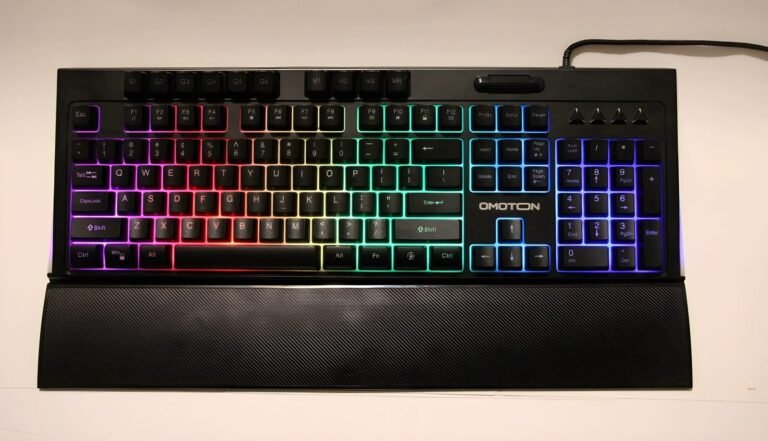
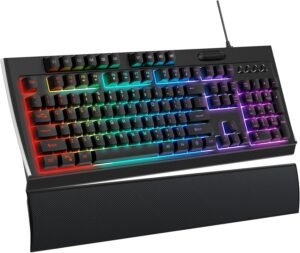
OMOTON WK014 gaming keyboard with rainbow RGB backlighting and detachable wrist rest.

Pros

  • 114-Key Layout

  • Macro Keys

  • Magnetic Wrist Rest

  • RGB Lighting

  • Profile Support

Cons

  • Weak software

  • Bad Batch Quality Complaints

  • Not Mechanical

Quick Summary

The OMOTON WK014 is a wired gaming keyboard designed for gaming, productivity, and everyday computer use. It focuses on providing programmable controls, dedicated macro keys, and a full-size layout with additional keys beyond a standard keyboard.

The keyboard includes six macro keys, three profile buttons, RGB lighting effects, and a detachable magnetic wrist rest. Basic functions work immediately through its plug-and-play USB connection, while additional customization is available through the companion software.

Some users appreciate the extra programmable keys, quieter membrane key design, and included wrist rest, while others note that the software can take time to learn and that the membrane keys may not appeal to those specifically looking for a mechanical keyboard.

For more information, stick around and read below for my take on this product.

Hey there, welcome to our review of the OMOTON WK014 Gaming Keyboard.

For this review, we tested the OMOTON WK014 Gaming Keyboard to offer honest insights and hopefully make your decision-making a tad easier. We have gathered the important details about this gaming keyboard to share with you, specifically focusing on its programmable features, dedicated macro keys, and full-size 114-key layout.

Throughout this post, we will discuss its key features, highlight user feedback, share our personal impressions, and explain who might benefit most from it.

So, if you are looking for a wired gaming keyboard with programmable controls and extra keys for MMO gaming, productivity, or everyday use, stick around to find out if this suits your needs.

Key Features​

114-Key Layout

The OMOTON WK014 uses a full-size 114-key layout that includes additional programmable keys beyond a standard keyboard. These extra keys can be used for shortcuts, macros, and other custom functions.

Magnetic Wrist Rest

The keyboard includes a detachable magnetic wrist rest designed to provide additional support during gaming, typing, and everyday computer use.

Dedicated Macro Keys

Six dedicated macro keys are located on the keyboard and can be programmed through the companion software. These keys can be assigned to custom commands and repeated actions.

Profile Switching

The keyboard supports three onboard profiles using the M1, M2, and M3 keys. This allows users to save different settings and switch between profiles when needed.

RGB Lighting Controls

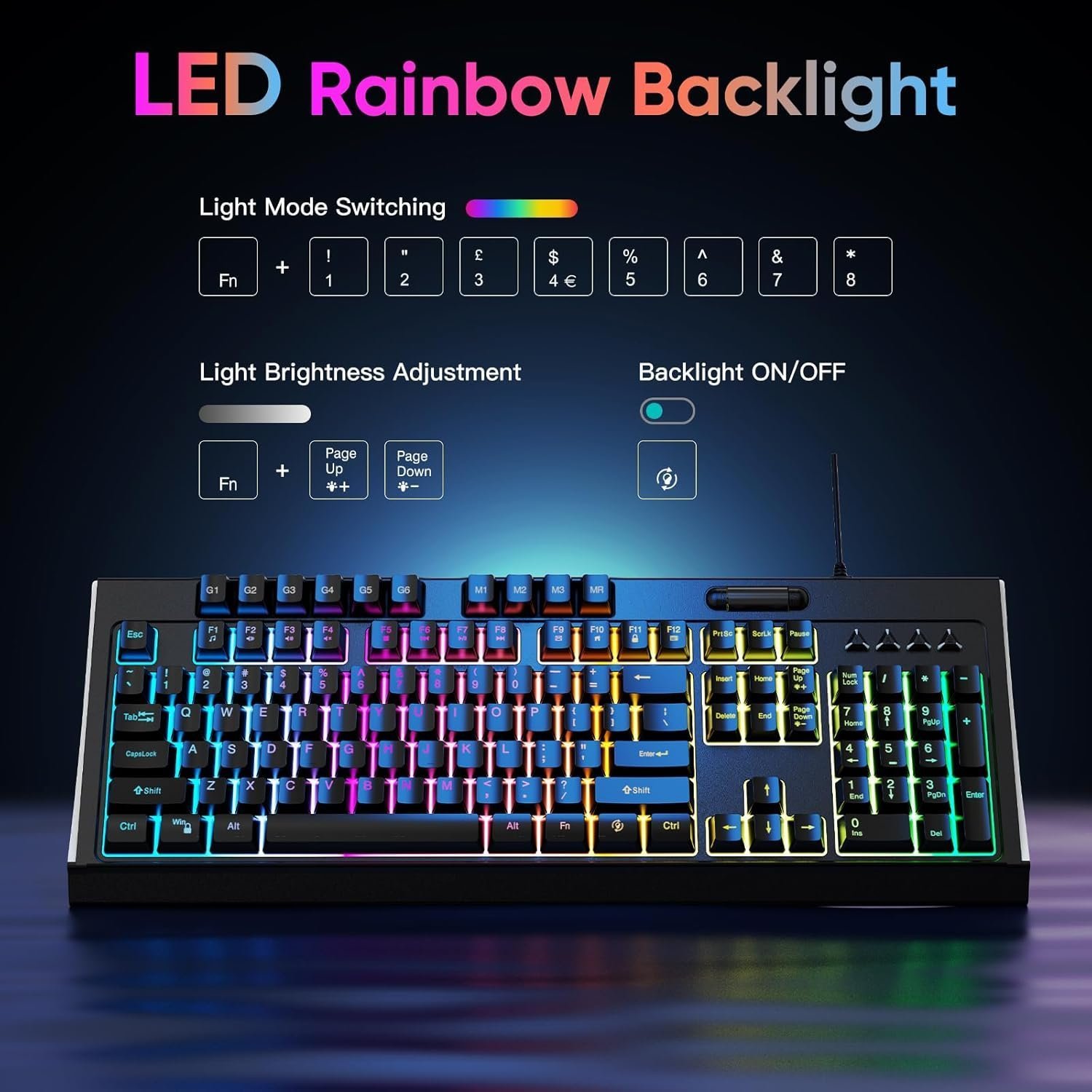
The keyboard supports multiple RGB lighting modes, including rainbow effects, breathing effects, fixed colors, typing-reactive lighting, and customizable lighting zones. Lighting settings can be adjusted through keyboard shortcuts or the companion software.

Programmable Software

The OMOTON software allows users to customize key assignments, create macros, adjust lighting settings, and modify supported keyboard functions.

Multimedia Shortcuts

Dedicated function shortcuts provide quick access to media controls, volume adjustment, playback controls, calculator access, email shortcuts, and other common computer functions.

Windows Lock and Gaming Controls

The keyboard supports Windows key lock functionality and includes an option to swap the WASD keys with directional controls for supported gaming scenarios.

OMOTON WK014 gaming keyboard lighting controls and rainbow RGB backlight feature graphic.

Performance & Feedback

Customers often mention the OMOTON WK014’s quiet membrane keys, noting that the keyboard produces less typing noise than many mechanical keyboards. The magnetic wrist rest also receives positive feedback for providing additional support during longer gaming and typing sessions.

Users also appreciate the keyboard’s programmable features. The dedicated macro keys, profile options, and RGB lighting controls allow for a variety of customization options, particularly for games that benefit from shortcuts and repeated commands.

The RGB lighting is another commonly discussed feature, with customers enjoying the available lighting effects and onboard controls. Some users also find the extra keys useful for macros, shortcuts, and other custom functions.

Some customers mention concerns about long-term durability, stating that certain units felt less sturdy than expected. There are also occasional reports of keyboards arriving with functionality issues or developing problems over time.

Another point raised by some users is that the keyboard uses membrane keys rather than mechanical switches. While some appreciate the quieter operation, others were expecting a mechanical keyboard and preferred a different key feel.

My Thoughts: OMOTON WK014 Gaming Keyboard

OMOTON WK014 gaming keyboard with rainbow RGB backlighting during hands-on testing.

I spent most of my time using the OMOTON WK014 for games that benefit from extra shortcuts and macros, particularly MMO and RPG titles. The additional keys along the top of the keyboard were useful to have available, and I found them easy enough to assign once I became familiar with the software.

The software itself worked, but it felt a bit dated compared to some of the keyboard software I have used recently. I was able to customize keys and create macros, although the layout was not always the easiest to navigate. Some settings took a little extra trial and error before I found what I was looking for.

The magnetic wrist rest was a nice addition during longer gaming sessions, and I appreciated having a quieter keyboard compared to some of the mechanical models on my desk. I also noticed a slight squeak from time to time while typing, but it was not something that affected regular use.

The RGB lighting looked good once everything was set up, though I would have liked a few more customization options within the software. Overall, I found myself getting the most use out of the extra programmable keys, especially in games where quick access to commands and shortcuts can be helpful.

Who Would Likely Favor This Product?

Players who spend time in MMO and RPG games might want to consider the OMOTON WK014. The dedicated macro keys and programmable functions can be useful for assigning shortcuts, abilities, and repeated commands.

Users who prefer quieter keyboards might want to consider this model. Its membrane key design produces less typing noise than many mechanical keyboards, which may be helpful in shared spaces or home offices.

Those who regularly use macros, shortcuts, or custom profiles might want to consider the OMOTON WK014. The keyboard supports programmable keys and multiple profiles, allowing users to create different setups for games, work, or everyday use.

Gamers and typists looking for additional wrist support might also want to consider this keyboard. The included magnetic wrist rest provides a dedicated resting area during longer sessions at the computer.

FAQ (Frequently Asked Questions)

How do I download the software?

To download the software for the OMOTON Gaming Keyboard:

  1. Visit the OMOTON website.
  2. Click on the Support tab.
  3. Select Download Driver from the available options.
  4. Choose the OMOTON WK014 Gaming Keyboard setup file that matches your preferred language.
  5. Download and install the software.
  6. Follow the installation instructions to begin customizing the keyboard.


Can I assign macros to any key?

Yes. The OMOTON software allows supported keys to be assigned with macros and custom functions.


How many macro keys does the keyboard have?

The keyboard includes six dedicated macro keys labeled G1 through G6.


Does the keyboard support multiple profiles?

Yes. The keyboard supports three profiles using the M1, M2, and M3 profile keys.


Does the keyboard include a wrist rest?

Yes. The OMOTON WK014 includes a detachable magnetic wrist rest.


Can I use the keyboard without installing the software?

Yes. The keyboard functions as a standard USB keyboard without software. Basic lighting controls and shortcuts can be accessed directly from the keyboard.


Is this a mechanical keyboard?

No. The OMOTON WK014 uses membrane keys rather than mechanical switches.


What operating systems are supported?

The keyboard supports Windows XP, Vista, 7, 8, 10, and 11, Linux systems, and limited macOS compatibility.


Does the OMOTON WK014 support Bluetooth?

No. This keyboard uses a wired USB connection only.


Does the OMOTON WK014 support 2.4GHz wireless connectivity?

No. The keyboard does not support wireless connections.


Does the OMOTON WK014 require drivers to work?

No. The keyboard supports plug-and-play functionality for basic operation. Software is only required for advanced customization features.
Connectivity Questions

How to connect the OMOTON WK014 Gaming Keyboard

  1. Connect the keyboard’s USB cable to an available USB port.
  2. Wait for the computer to detect the keyboard.
  3. Begin using the keyboard.

Troubleshooting & Settings

How to record a macro

  1. Select a profile using M1, M2, or M3.
  2. Press the MR key.
  3. Select one of the macro keys (G1-G6).
  4. Enter the desired key combination.
  5. Press MR again to save the macro.
  6. Press the assigned macro key to use it.


How to remove a macro

  1. Select the profile containing the macro.
  2. Press MR.
  3. Select the macro key.
  4. Press MR again without recording any keys.
  5. The macro will be cleared.


How to switch RGB lighting modes

  1. Press FN + 1 through FN + 9.
  2. Continue pressing the shortcut corresponding to the desired lighting effect.


How to adjust lighting brightness

  1. Press FN + Page Up to increase brightness.
  2. Press FN + Page Down to decrease brightness.


How to lock the Windows key

  1. Press FN + Windows.
  2. Repeat the shortcut to unlock it.


How to swap WASD and arrow key functions

  1. Press FN + W.
  2. Press the shortcut again to return to the default layout.


How to restore factory settings

  1. Press FN + ESC.
  2. Wait for the keyboard to reset to its default settings.

Additional Product Information

OMOTON WK014 Gaming Keyboard – Programmable Keys | Magnetic Wrist Rest | RGB Lighting
OMOTON WK014 gaming keyboard with rainbow RGB backlighting and detachable wrist rest.
  • Magnetic Wrist Rest – Includes a detachable wrist rest designed to provide additional support during longer gaming or typing sessions.
  • Programmable Keys – Supports programmable key assignments, profiles, and macro functions through the companion software.
  • RGB Lighting – Features multiple lighting colors and lighting modes that can be adjusted through onboard controls.
  • Multimedia Controls – Includes shortcut keys for common media functions and computer controls.
  • 114-Key Layout – Full-size keyboard layout with additional keys available for shortcuts and custom assignments.
  • USB Connection – Connects through a wired USB connection and supports Windows PCs and other compatible systems.