This post contains affiliate links. If you purchase through them, we may earn a small commission at no extra cost to you. This product was provided through the Amazon Vine program for our honest review. All opinions are our own. Thanks for supporting Gaming Gear Drop.
Pros
- Hall Effect Sticks
- Hall Effect Triggers
- Responsive Controls
- RGB Lighting
- Retro Design
- Four Vibration Motors
- Remappable Buttons
- Software Customization
- Adjustable Trigger Stops
Cons
- Wired Only
- Smaller Size
- Polling Rate Complaints
- Limited Lighting Customization
Quick Summary
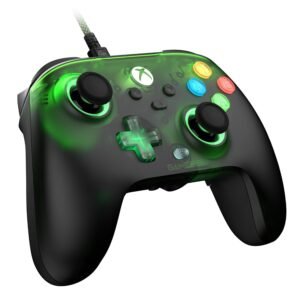
The GameSir T7 Pro is a wired gaming controller designed for Xbox Series X|S, Xbox One, and Windows PC. It features a transparent green design with reactive RGB lighting, offering a familiar Xbox-style layout with a retro appearance.
Its main features include Hall Effect joysticks and triggers, adjustable trigger stops, four vibration motors, and two programmable rear buttons. GameSir Nexus provides additional customization for button mapping, sensitivity, vibration, and controller profiles.
Customer feedback highlights the controller’s responsive performance, appearance, and customization options. However, some users have raised concerns about polling-rate settings and the lack of wireless connectivity. Its smaller size may also be worth considering for gamers who prefer larger controllers.
For more information, stick around and read below for my take on this product.
Hey there, welcome to our review of the GameSir T7 Pro Wired Controller.
For this review, we tested the Retro Transparent Green version, which features a design reminiscent of classic Xbox controllers. We’ll take a closer look at what this controller offers for Xbox Series X|S, Xbox One, and PC gamers while sharing our experience using it.
Throughout this post, we will discuss its key features, highlight customer feedback, share our personal impressions, and explain who might benefit most from it. We’ll also cover connectivity, software customization, and troubleshooting.
So, if you’re looking for a wired Xbox controller with a nostalgic design, Hall Effect joysticks, and customizable controls, stick around to find out if the GameSir T7 Pro suits your gaming needs.
Key Features
Controller Layout
The GameSir T7 Pro features a retro transparent green design inspired by classic Xbox controllers. RGB lighting appears around the action buttons, D-pad, analog sticks, and grips, giving the controller a colorful appearance.
It also includes textured grips, a familiar Xbox-style button layout, and two programmable rear buttons labeled L4 and R4. These extra buttons can be assigned to other controller functions through GameSir Nexus.
A 3.5mm audio jack is also included for connecting a compatible wired gaming headset.
Adjustable Hall Effect Triggers
The controller includes Hall Effect triggers with two-stage trigger stops, allowing you to switch between short and full trigger presses.
The shorter setting requires less movement to register an input, which can be useful in shooting games. The full setting provides gradual control for games that support pressure-sensitive actions, such as acceleration and braking in racing games.
GameSir Nexus also provides trigger deadzone adjustments and Hair Trigger settings, allowing you to further customize how quickly the triggers respond.
Wired USB Connectivity
The GameSir T7 Pro connects through a USB-C cable and supports Xbox Series X|S, Xbox One, Windows 10/11, and compatible Steam games.
The wired connection provides a direct way to play without Bluetooth pairing or charging batteries. Once connected, the controller can be powered on using the Xbox button, with a solid white indicator showing a successful connection.
The GameSir Nexus interface also includes polling-rate options of 250Hz, 500Hz, and 1000Hz. Polling rate refers to how often the controller reports inputs to the connected device, although available settings may depend on the platform.
Hall Effect Joysticks
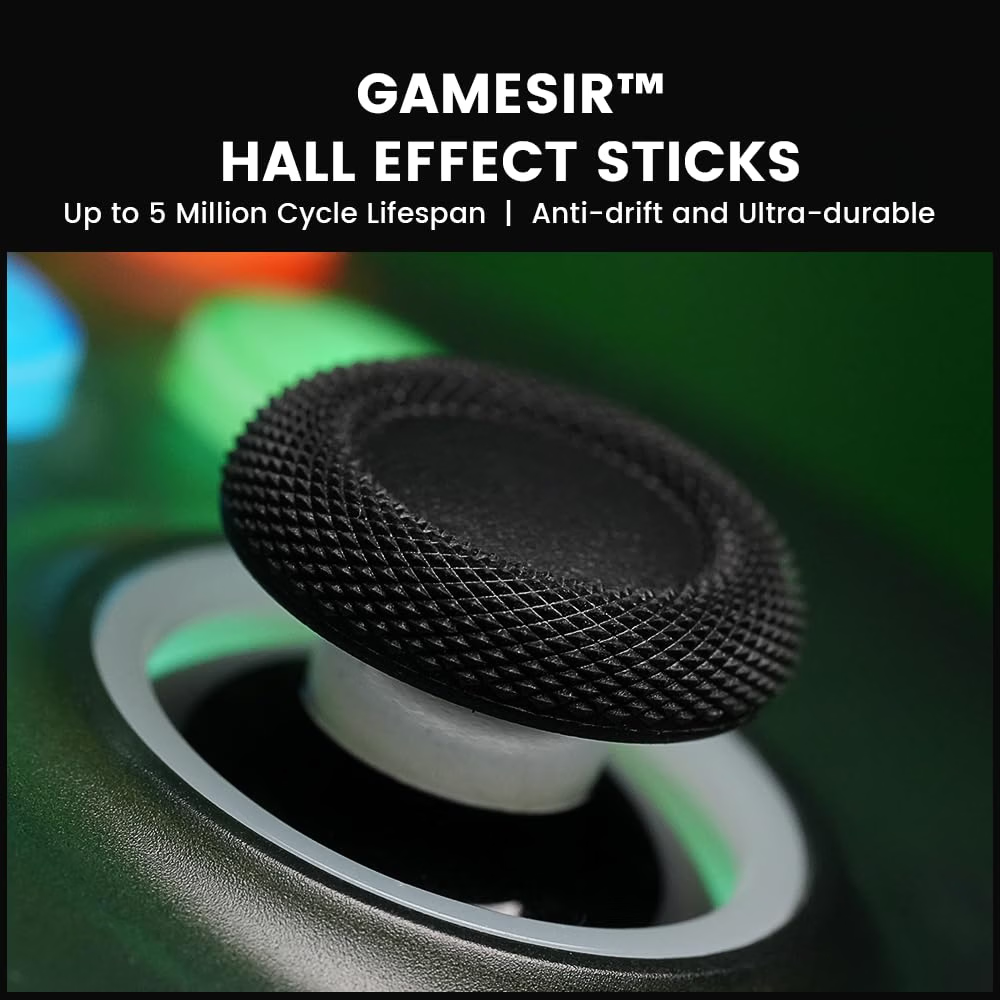
The GameSir T7 Pro uses Hall Effect joysticks that detect movement through magnetic sensing rather than traditional physical contact. This design helps reduce wear and the risk of stick drift over time.
The joysticks are rated for over 5 million cycles. Through GameSir Nexus, you can also adjust stick deadzones, sensitivity curves, and movement ranges to change how the controls respond during gameplay.
Four Vibration Motors
The controller includes four vibration motors, with two positioned in the grips and two providing feedback through the triggers.
This allows supported games to provide different types of vibration depending on the action taking place. GameSir Nexus lets you adjust the vibration strength of each motor separately, including the left and right triggers and grips.
The software also provides vibration testing and options for enabling or disabling trigger vibration.
GameSir Nexus Customization
GameSir Nexus provides additional settings for changing how the controller works on Xbox and Windows PC. You can remap buttons, adjust joystick and trigger response, and customize controller settings without relying entirely on onboard button combinations.
The software also includes options for swapping the left joystick and D-pad functions, adjusting stick movement curves, and changing trigger sensitivity. Controller testing, calibration, and firmware updates are available as well.
Controller Profiles
The GameSir T7 Pro supports four selectable profiles for switching between different controller settings. You can change profiles directly using the M button together with A, B, X, or Y.
GameSir Nexus also provides profile management for organizing controller settings. This can be useful when switching between games that require different button assignments or sensitivity preferences.
RGB Lighting and Sleep Settings
The RGB lighting can be adjusted through GameSir Nexus, including brightness settings. The software also includes lighting controls, although additional lighting animations are marked as upcoming features.
The controller automatically enters sleep mode after approximately 10 minutes without input, turning off the LED strips. You can also manually enter sleep mode by holding the Xbox button for five seconds.
Pressing the Xbox button or one of the four action buttons wakes the controller when it is connected.
Performance & Feedback
Customers have shared positive feedback about the GameSir T7 Pro’s build quality and overall design. The transparent green finish and RGB lighting receive compliments for their appearance, while the controller’s Hall Effect joysticks and triggers are appreciated for their responsiveness during gameplay.
The vibration feedback is another positive point, with customers describing it as satisfying during gaming sessions. The additional rear buttons also receive favorable comments for providing more control options.
GameSir Nexus receives positive feedback for its customization features and software support. Customers appreciate being able to adjust button assignments, sensitivity, vibration, and other controller settings to suit their preferences.
However, some customers would prefer a wireless connection rather than being limited to USB. There are also complaints about the controller’s polling rate, with some users questioning its performance or available reporting-rate settings.
My Thoughts: GameSir T7 Pro Wired Controller
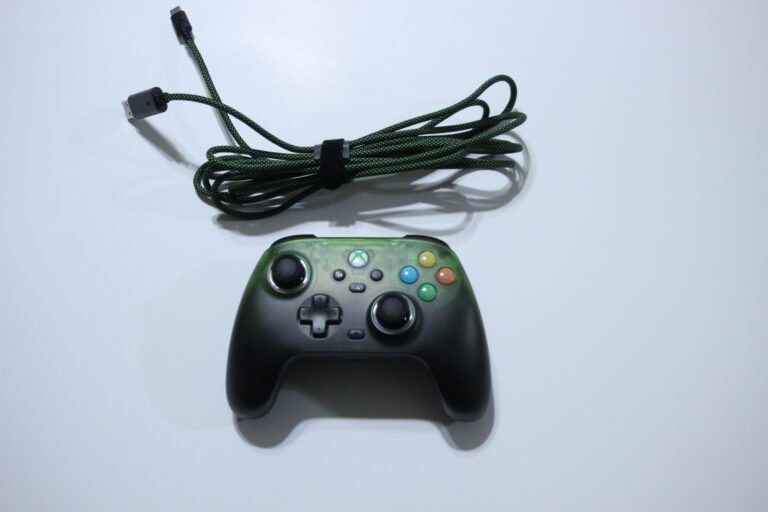
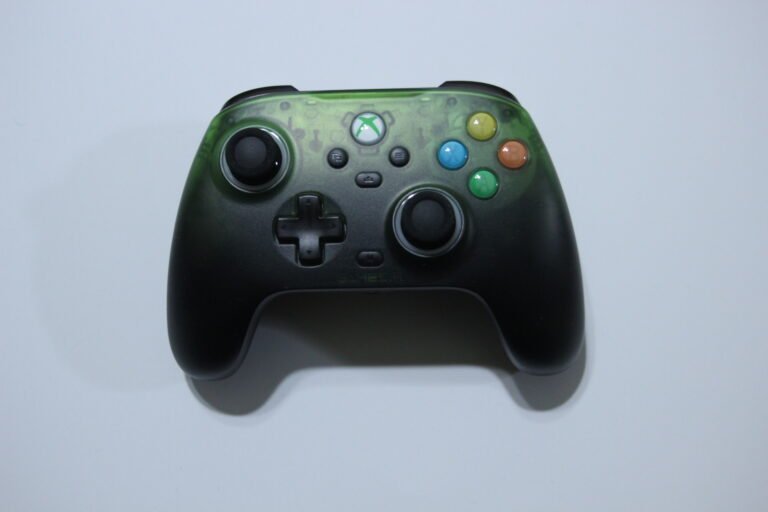
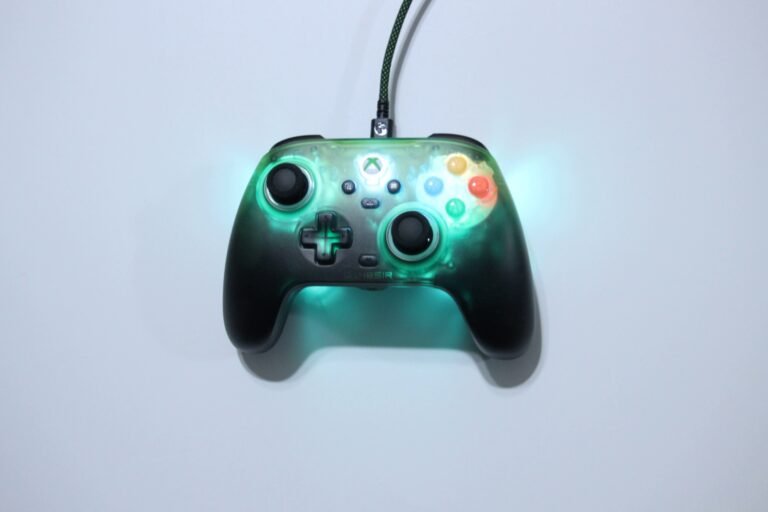
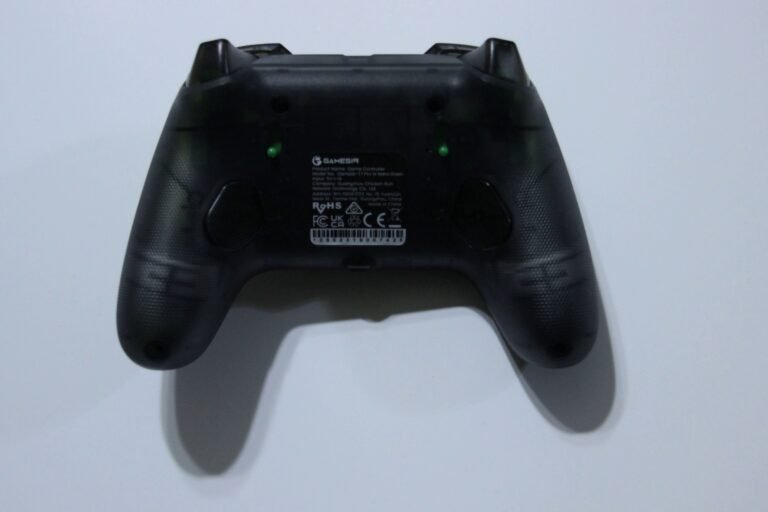
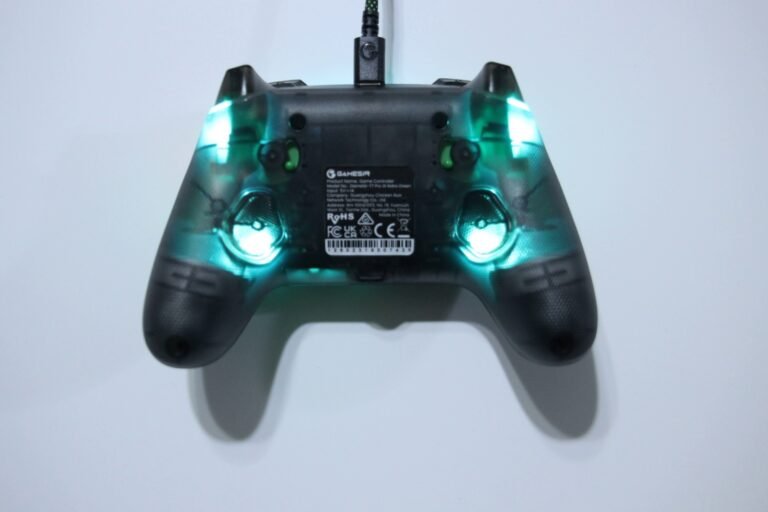
When I first looked at the GameSir T7 Pro after taking it out of the box, I noticed its clean and simple design, although the controller looked a little cheap at first glance. However, once I powered it on, the transparent green finish and RGB lighting made it look much more interesting.
One feature I particularly enjoy is how the lighting reacts to the controls. Pressing the face buttons or moving the D-pad and analog sticks causes the lights to brighten before slowly dimming again. The lighting is also brighter around the back than the front, although the two rear buttons don’t have the same glowing effect.
The controller itself is lightweight and feels somewhere between small and medium-sized. I personally wish it were a little bigger, but the overall handling was comfortable. The buttons felt responsive during gameplay, and I didn’t notice any input delays while using the wired connection.
GameSir Nexus also provides a decent amount of customization. I was able to remap buttons, adjust thumbstick deadzones and response curves, change trigger settings, and customize vibration feedback. The software includes lighting adjustments as well, although additional animations are currently listed as coming soon.
What I appreciate most about the controller is the nostalgia it brings. The transparent green design and colorful lighting remind me of playing on the original Xbox when I was younger. Despite a few things I would change about the size and appearance, that familiar retro style is something I really enjoy.
Who Would Likely Favor This Product?
Gamers who prefer wired Xbox controllers might want to consider the GameSir T7 Pro. It supports Xbox Series X|S, Xbox One, and Windows PC, making it suitable for players who want a direct USB connection without worrying about batteries or wireless pairing.
Players who enjoy customizing their controls might also want to look into it. GameSir Nexus provides options for adjusting thumbstick sensitivity, trigger response, vibration, and button assignments.
Gamers who enjoy retro gaming accessories may appreciate the transparent green design and reactive RGB lighting. The controller’s appearance may appeal to those who remember the colorful transparent controllers from earlier gaming generations.
Players who prefer Hall Effect joysticks and adjustable triggers might also want to consider it, especially for games that benefit from gradual trigger control or shorter button presses.
However, gamers who prefer larger controllers or wireless connectivity may want to look into other options, as the T7 Pro has a smaller design and requires a wired connection.
FAQ (Frequently Asked Questions)
What devices are compatible with the GameSir T7 Pro?
The GameSir T7 Pro supports Xbox Series X|S, Xbox One, Windows 10/11, and compatible Steam games.
Does the GameSir T7 Pro support Bluetooth?
No. The controller uses a wired USB connection and does not support Bluetooth or 2.4GHz wireless connectivity.
Does the controller have Hall Effect joysticks?
Yes. It uses Hall Effect joysticks with magnetic sensing designed to reduce physical wear and the risk of stick drift.
Does it have Hall Effect triggers?
Yes. The controller includes Hall Effect triggers with adjustable short and full trigger travel.
Does the GameSir T7 Pro have vibration?
Yes. It features four vibration motors, including two grip motors and two trigger motors.
Does the controller have motion controls?
The supplied documentation does not clearly confirm six-axis gyroscope support. GameSir Nexus displays motion-related settings, but their functionality is not explained.
Does it have programmable rear buttons?
Yes. The L4 and R4 rear buttons can be remapped through GameSir Nexus.
Can the RGB lighting be customized?
Yes. GameSir Nexus supports lighting brightness adjustments. Additional lighting animations are marked as coming soon in the supplied software information.
Does the controller have Turbo?
The supplied manual does not confirm a Turbo function or provide Turbo programming instructions.
Does it support a gaming headset?
Yes. The controller includes a 3.5mm audio jack for compatible wired headsets.
Does it require batteries?
No. The controller receives power through its USB connection.
Does it support multiple profiles?
Yes. The controller provides four selectable profiles using the M button and the A, B, X, or Y buttons.
Does it support software customization?
Yes. GameSir Nexus provides button remapping, joystick adjustments, trigger settings, vibration controls, calibration, and firmware updates.
Connectivity Questions
How do I connect the GameSir T7 Pro to Xbox Series X|S?
- Connect the included USB-C cable to the controller.
- Plug the other end into an available USB port on the Xbox console.
- Briefly press the Xbox button to power on the controller.
- Wait for the Xbox button indicator to turn solid white.
The controller should now be ready for supported games.
How do I connect the controller to Xbox One?
- Connect the controller to your Xbox One using the included USB cable.
- Briefly press the Xbox button.
- Wait for the controller to establish a connection.
- A solid white indicator confirms the connection.
How do I connect the GameSir T7 Pro to Windows PC?
- Connect the controller to your PC using the USB-C cable.
- Briefly press the Xbox button.
- Wait for Windows to recognize the controller.
- Check that the Xbox button indicator is solid white.
How do I use the controller with Steam?
- Connect the controller to your Windows PC using USB.
- Open Steam.
- Go to Settings > Controller.
- Check whether Steam recognizes the controller.
- Launch a game that supports controller input.
Can I connect the controller wirelessly?
No. The GameSir T7 Pro requires a wired USB connection. Bluetooth pairing and wireless receiver connections are not supported.
Programming & Troubleshooting
How do I change controller profiles?
Hold the M button with the corresponding face button to select a profile:
- M + Y: Profile 1
- M + B: Profile 2
- M + A: Profile 3
- M + X: Profile 4
The controller supports four selectable profiles for different control settings.
How do I reset the controller?
- Make sure the controller is connected.
- Hold View + Menu + M together for approximately three seconds.
- Release the buttons to reset the controller configuration.
The manual recommends this procedure if the controller becomes unresponsive or behaves abnormally.
How do I calibrate the joysticks and triggers?
- Disconnect the controller from your PC.
- Hold View + Menu + Xbox while connecting the USB cable to the PC.
- Wait for the Xbox button indicator to blink white slowly.
- Leave both joysticks and triggers untouched.
- Press A to begin calibration.
- Fully press LT and RT.
- Rotate both analog sticks around their full movement range three times.
- Press A again to finish.
- Wait for the Xbox button indicator to turn solid white.
- Disconnect and reconnect the controller before playing.
Calibration may help correct unusual stick or trigger readings.
How do I switch between short and full trigger presses?
Use the trigger-stop controls to select between short and full trigger travel.
The shorter setting reduces how far the trigger needs to move, while full travel provides gradual analog control.
GameSir Nexus also offers additional trigger adjustments.
How do I connect the controller to GameSir Nexus?
- Connect the controller to your Xbox or Windows PC.
- Open the Microsoft Store.
- Search for GameSir Nexus.
- Install and launch the application.
- Select the connected controller to access its settings.
The software is also available through the GameSir website.
How do I remap buttons using GameSir Nexus?
- Open GameSir Nexus.
- Select the controller’s button mapping section.
- Choose the button you want to change.
- Assign the desired function.
- Save or apply the new settings.
The L4 and R4 rear buttons can also be customized through this section.
How do I customize the joysticks?
- Open GameSir Nexus.
- Select the joystick settings.
- Adjust the available deadzone, response curve, or movement range options.
- Apply the changes.
The software also provides anti-deadzone settings, inverted directions, and Circle or Raw output options.
How do I customize trigger sensitivity?
- Open GameSir Nexus.
- Select the trigger settings.
- Adjust the trigger deadzone or response range.
- Choose a Hair Trigger setting if needed.
- Apply the changes.
Hair Trigger Mode includes Off, Adaptive Mode, and Fixed Mode. An automatic calibration option is also listed for trigger travel adjustments.
How do I adjust vibration strength?
- Open GameSir Nexus.
- Select the vibration settings.
- Adjust the available vibration levels.
- Save or apply the changes.
You can adjust the left grip, right grip, left trigger, and right trigger vibration separately.
How do I test the vibration motors?
Open the vibration settings in GameSir Nexus and use the available testing options.
The software also includes switches for enabling or disabling trigger vibration.
How do I change the RGB lighting?
- Open GameSir Nexus.
- Find the lighting settings.
- Adjust the available brightness controls.
- Save or apply the changes.
The supplied software information identifies additional lighting animations as coming soon, so those effects may not currently be available.
How do I adjust the polling rate?
- Open GameSir Nexus.
- Find the report-rate or polling-rate setting.
- Select an available option.
- Apply the setting.
The supplied software interface displays 250Hz, 500Hz, and 1000Hz options. Availability may depend on the connected platform.
How do I update the firmware?
- Connect the controller to your Xbox or Windows PC.
- Open GameSir Nexus.
- Select Firmware Upgrade.
- Check whether an update is available.
- Follow the on-screen instructions to complete the update.
Avoid disconnecting the controller while an update is being installed.
How do I test the controller’s buttons and sticks?
Open GameSir Nexus and select the controller testing screen.
You can use this section to check whether the buttons, joysticks, and triggers are registering correctly.
How do I swap the left joystick and D-pad functions?
- Open GameSir Nexus.
- Go to the button mapping settings.
- Find the joystick and D-pad exchange option.
- Enable the setting and apply the changes.
The software also includes an option for locking diagonal D-pad inputs.
Why does the controller go into sleep mode?
The controller automatically enters sleep mode after approximately 10 minutes without input.
You can also hold the Xbox button for five seconds to enter sleep mode manually.
How do I wake the controller?
Press the Xbox button or one of the A, B, X, or Y buttons while the controller is connected.
What should I do if the controller is not responding?
- Check that the USB cable is firmly connected.
- Disconnect and reconnect the controller.
- Press the Xbox button to wake it.
- Try another USB port if available.
- If the problem continues, hold View + Menu + M for three seconds to reset the configuration.
What should I do if the joysticks behave unexpectedly?
First, check the deadzone and response settings in GameSir Nexus.
If the problem continues, use the controller’s joystick and trigger calibration procedure to restore its recognized movement range.
If you are still interested in knowing more about the product, click the button below
GameSir T7 Pro Wired Controller | Xbox Series X|S, Xbox One & PC | Hall Effect Sticks | RGB Lighting | GameSir Nexus
- Hall Effect Joysticks & Triggers: The GameSir T7 Pro uses magnetic Hall Effect joysticks designed to reduce physical wear and the risk of stick drift. The Hall Effect triggers also feature two-stage trigger stops, allowing you to switch between short presses for quicker inputs and full travel for gradual control in supported games.
- Wired Xbox & PC Connectivity: The controller supports Xbox Series X|S, Xbox One, Windows 10/11, and compatible Steam games through a USB-C connection. It does not require batteries or Bluetooth pairing. GameSir Nexus also provides polling-rate options for adjusting how frequently the controller reports inputs.
- Retro Transparent Green Design: The controller features a transparent green shell inspired by classic Xbox designs, with RGB lighting around the action buttons, D-pad, analog sticks, and grips. It also includes textured grips, two remappable rear buttons, and a 3.5mm headset jack.
- Four Vibration Motors: Two motors in the grips and two in the triggers provide vibration feedback during supported games. GameSir Nexus allows you to adjust the vibration strength of each motor separately and test the feedback through its software settings.
- GameSir Nexus Customization: The GameSir Nexus software supports button remapping, joystick and trigger adjustments, calibration, and firmware updates. It also provides controller profiles, lighting brightness settings, and additional options for customizing how the controller responds during gameplay.
Images by Gaming Gear Drop unless otherwise noted. Additional photos sourced from the official Gamesir Amazon listing for review purposes.